
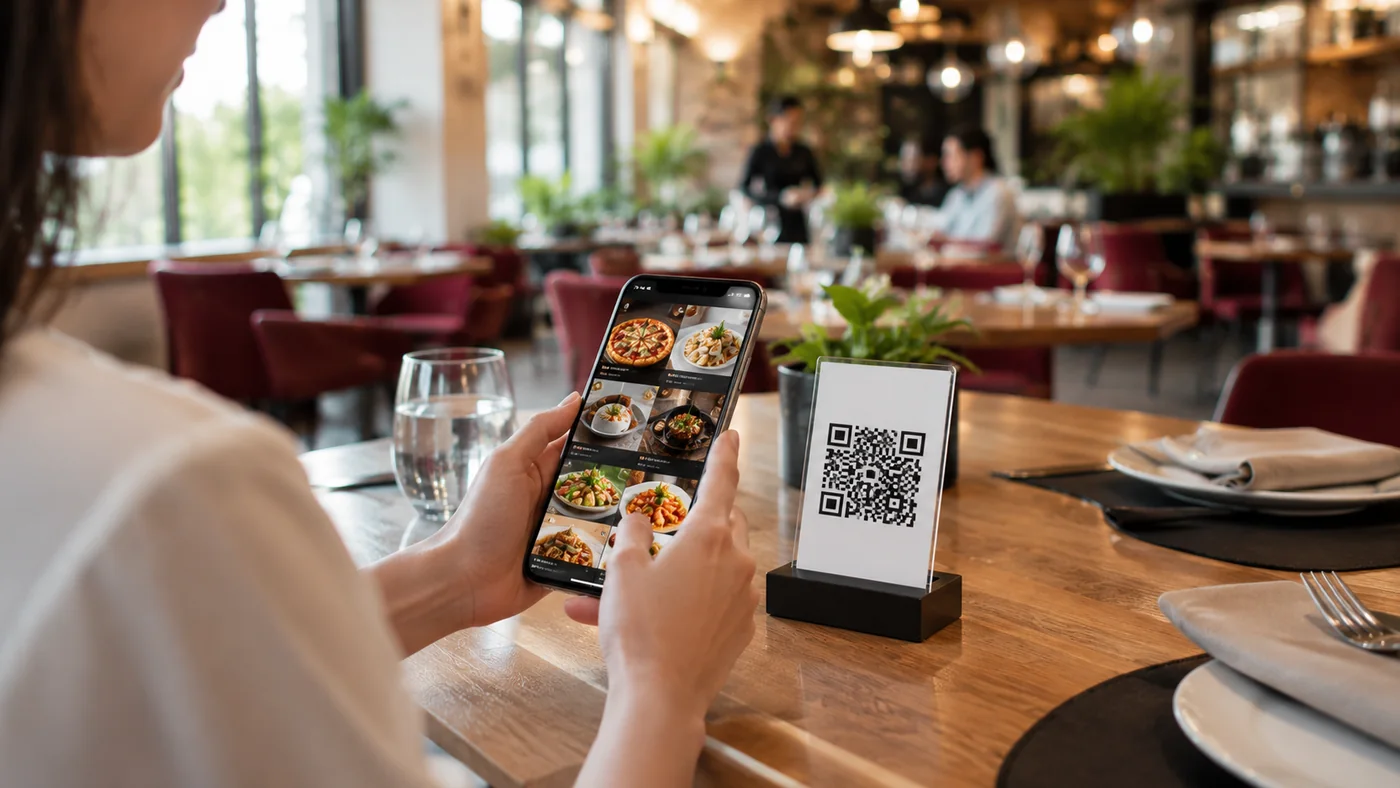
Want to switch to a QR menu but not sure where to start? Good news: creating a QR menu takes minutes and needs no technical knowledge. This guide walks through every step, from building the menu structure to adding items, prices and photos, multilingual content and placing the QR code on tables.
1. Build the Menu Structure
First define categories: starters, mains, drinks, desserts, etc. A good category structure helps guests find items fast and raises average order value. You can reorder categories by time of day (e.g. breakfast on top in the morning).
2. Add Items, Prices and Photos
- Enter name, description and price for each item.
- Add a product photo — visual menus boost sales.
- Enter ingredients and allergen info (if needed).
3. Prepare Multilingual Content
If you are in a tourist area, prepare the menu in TR/EN/DE/ES. When a guest picks their language, names and descriptions appear in it. We also covered why multilingual menus matter in our what is a QR menu post.
4. Generate the QR Code and Place It on Tables
Once the menu is ready, a QR code is generated per table. Place it on the table, a stand or a menu card. With table-based QR codes, orders drop straight onto that table's check.
Creating a QR Menu with RoxPos
You do all these steps from one panel with RoxPos's QR menu software, no coding. Edit the menu live, add photos, pick the language and generate the QR code instantly. See the QR menu demo; for ordering, see the QR ordering system page.