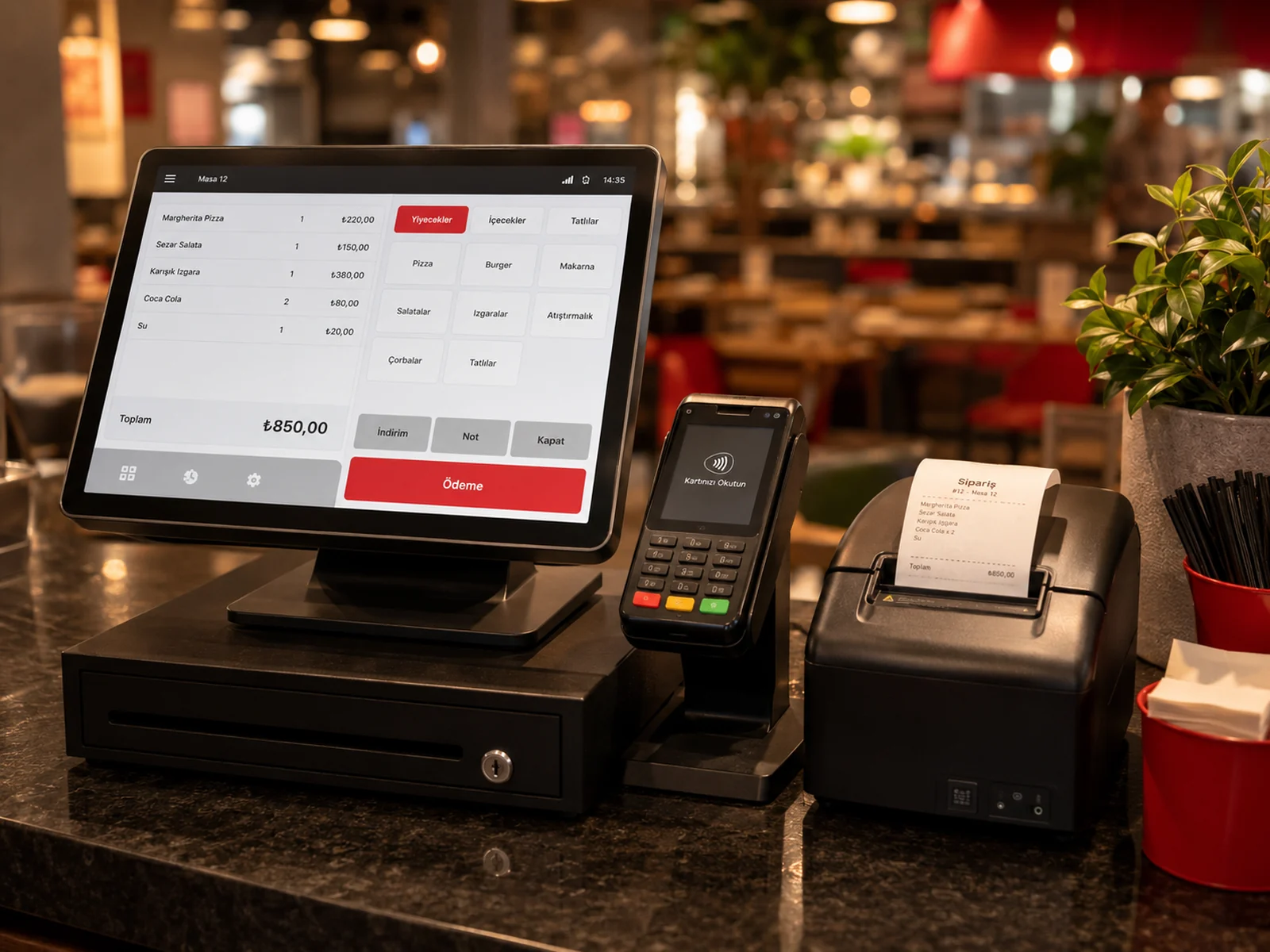
How does a bill reach the inPOS device over wireless (TSM)?
The cashier sends the bill with 'Send to POS' in RoxPos; the inPOS device pulls the sent bills from RoxPos itself through inPOS TSM and shows them in its list. Once the order is opened on the device, the table is locked and drops off the other devices' lists. When the payment is taken and the receipt issued, the payment plus the receipt no., Z no. and EKÜ no. are written to RoxPos and the table closes. If the device cancels, the order returns to the list; if the same receipt arrives twice, the payment is not written again.
How does the wired (GMP3) connection work?
The device is paired once with the Windows PC at the till using inPOS's GMP3 pairing program (the PC's IP address and port). The RoxPos inPOS till program on that PC prints the receipt on the device over the cable. The payment type is chosen in RoxPos and is required (cash, card or meal card); the receipt is issued with that type and the receipt no., Z no. and EKÜ no. are written to RoxPos. In the panel, under Settings ▸ POS Integration ▸ inPOS, set the connection type to Wired (GMP3) and enter the device's serial number plus the till PC's IP address and port.
Is the payment type chosen on the device or in RoxPos?
It depends on the connection. On wireless (TSM) either works: if you choose cash, a meal card (Multinet, Sodexo, Setcard, MetropolCard, Edenred, TokenFlex, Paycell, iWallet) or bank transfer in RoxPos, the device issues the receipt with that type and the amount counts as paid; if you choose card or no type, the device takes the payment. To block sending without a type, turn on the terminal's optional 'Payment type required' setting. On wired (GMP3) the payment type is chosen in RoxPos and is required.
How is inPOS set up, and how are test and live separated?
In the panel, under Settings ▸ POS Integration ▸ inPOS, choose the connection type (Wireless TSM or Wired GMP3) and define the terminal with the device's serial number; for wired, also enter the till PC's IP address and port. On wireless (TSM), your company profile decides whether the test or live environment is used; the address is the same, so there is nothing extra to set.
How are online order receipts issued with inPOS?
It depends on the connection. On wired (GMP3), the till program prints the online order receipt; if 'Auto-send to POS (Receipt)' is on in the online order automation, the receipt is issued automatically on the device you chose. On wireless (TSM), receipts for orders from platforms such as Yemeksepeti and Getir appear in the device's list; they are not issued automatically — the cashier picks the order from the device's list and issues the receipt.
Is an additional device required for the inPOS integration?
Your existing inPOS device is enough. RoxPos runs in the cloud; the activation steps are completed together with our support team.
Are collections reflected in the reports?
Yes. Payment and collection records are reflected in the reports by channel; you see turnover and payment breakdown from a single panel.
Can I use it in multiple branches?
Yes. You can define a separate device for each branch, manage all branches from a single account and get comparative reports.