
Feature
With RoxPos, open a table, let waiters take orders on their phones, send them to the kitchen automatically and close the bill in seconds with split payment, comps and discounts.
15 days free · No card required · No setup
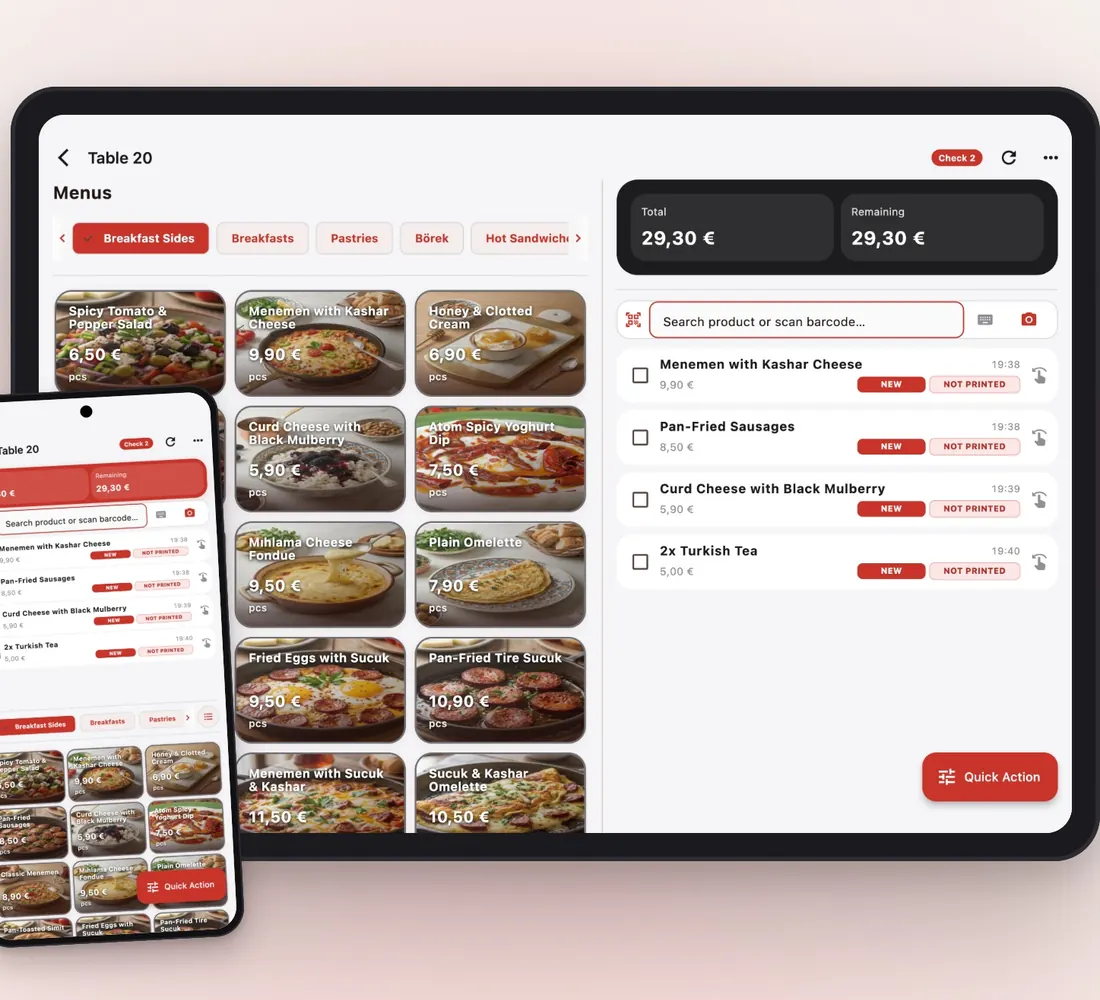
Adding items, sending to the kitchen, moving, splitting, comps, discounts and payment all sit on one check screen, with the same rules in the web panel and the RoxPos Pro app.
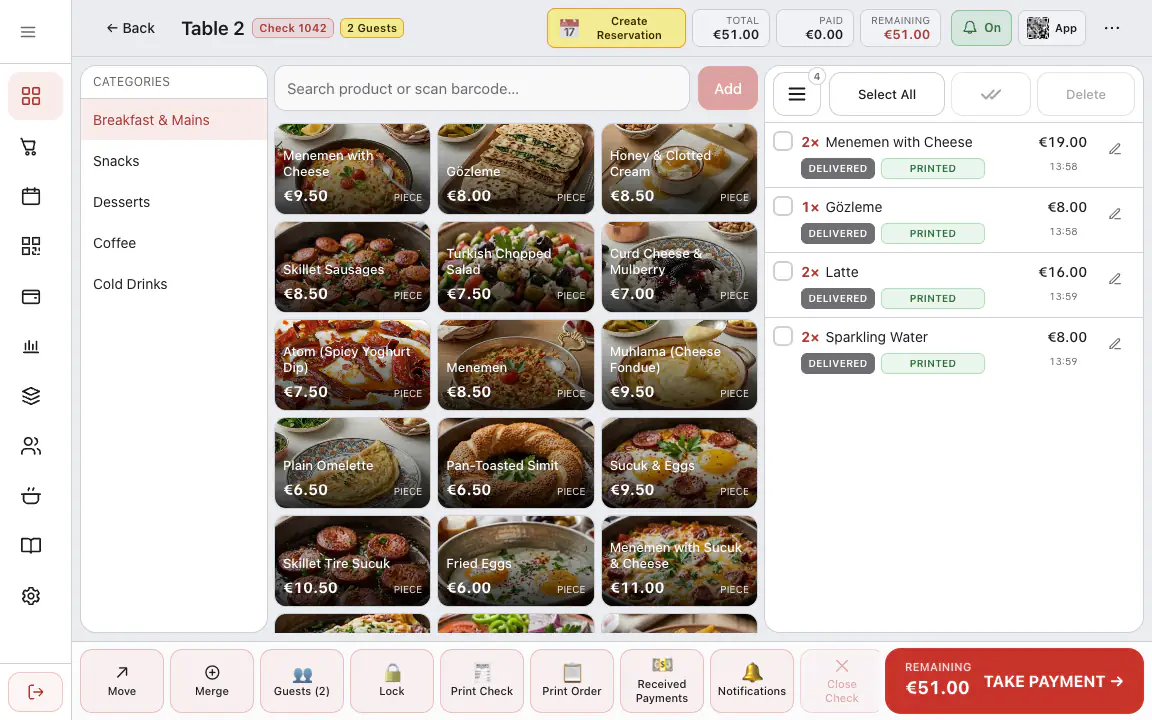
Items land on the check from a category, a search or a barcode; each line shows its time and its NEW / NOT PRINTED status. Add a Note / Special Detail to a line, pick options such as cooking or sauce from Product Details, and the guest count can be asked on the first item.
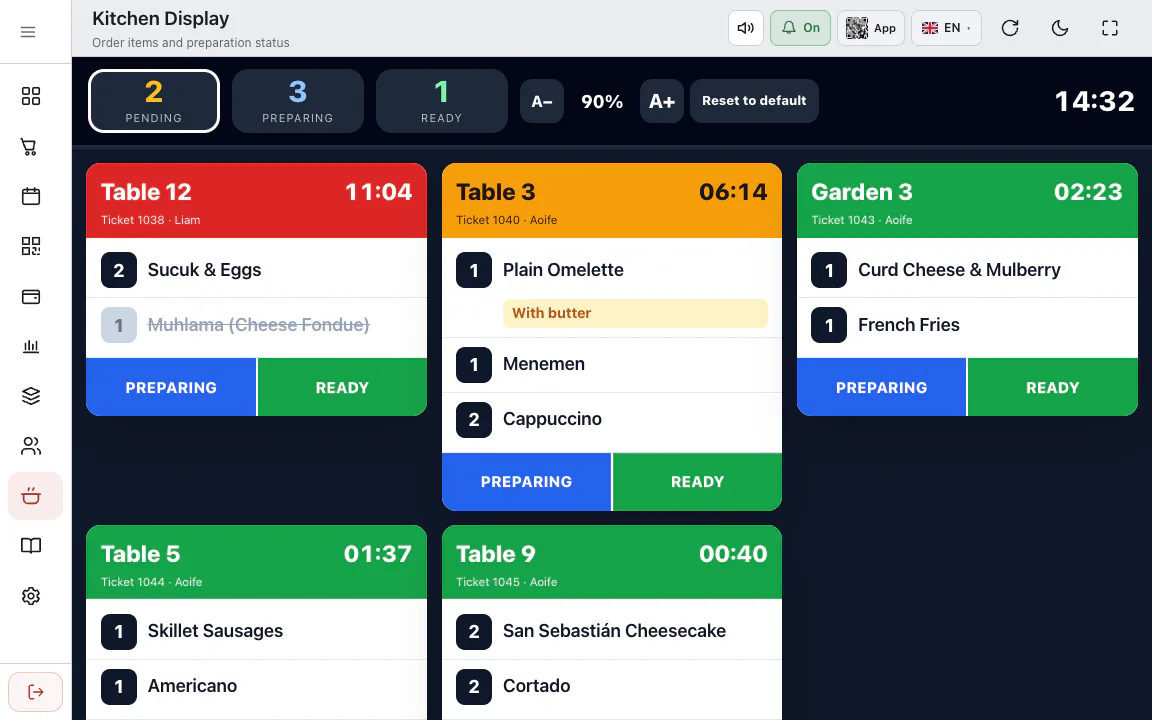
Print Order sends only unprinted items to the printers assigned to each product; Print Selected Order sends the ticked ones. With the Kitchen Display, items move through Pending, Preparing and Ready, and the ready status shows on the table card.
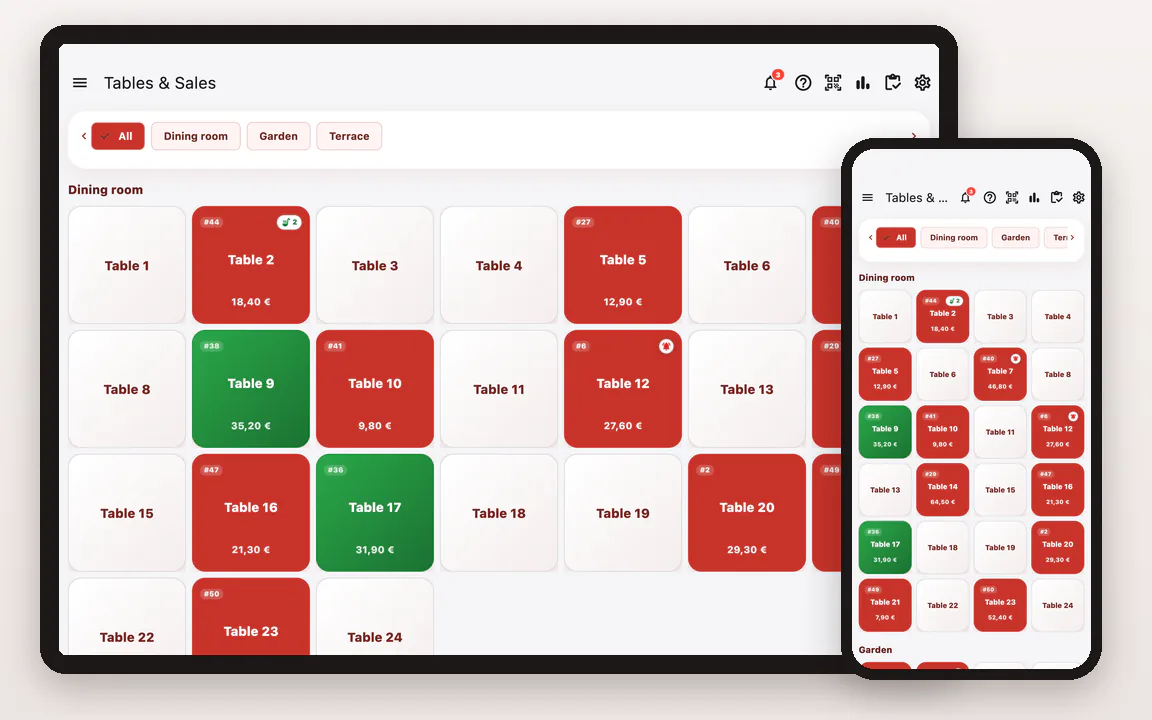
Move sends the whole check, or only the selected items, to another table; the rest stays put. Merge gathers several tables into one main check, and Unmerge returns each table to its own check. All three depend on user permissions.
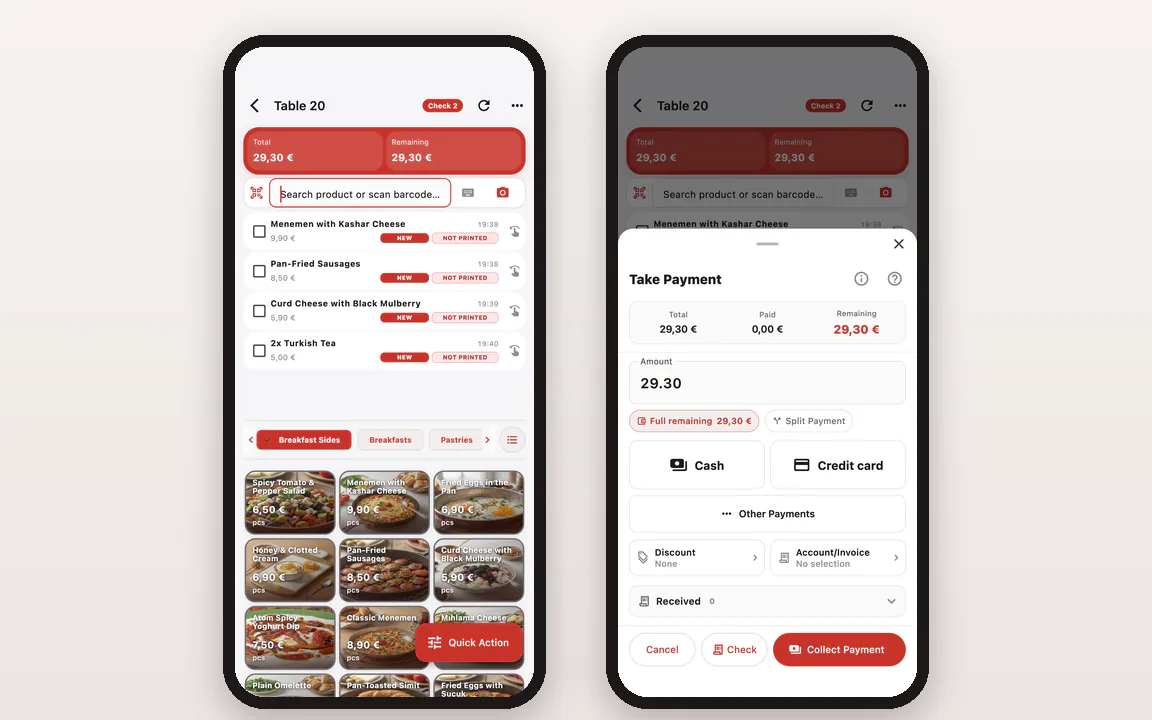
In Take Payment you change the amount for a partial payment and collect the rest with another payment type. Split Payment works By amount or By items; a paid item cannot be picked again, and Received Payments lists every collection.
Add Comp puts an item on the house and tags it COMP; comps appear by product and by user in the Complimentary Items report. Discounts go on as a percentage or with one tap from Preset Discounts, and Time-Based Rules apply them automatically on chosen days and hours.
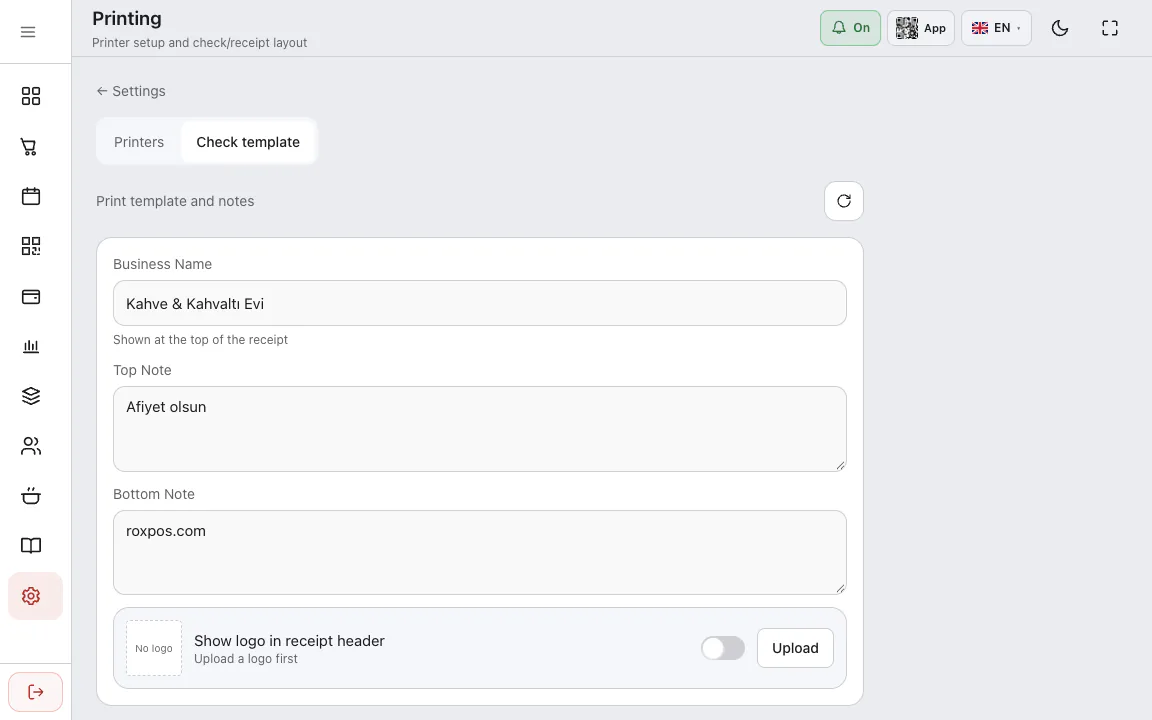
Print Check prints the bill for the guest, and Print Discounted Check shows the discount on it. The business name, logo, top and bottom notes are edited under Settings ▸ Printing ▸ Check template; printers sit on the Printers tab of the same screen.
Details →Lock keeps a table from being changed on any device until it is unlocked. Notifications holds table notes (for example, Waiter called) with their history. Actions such as deleting items are written to the Activity Log, and a deletion asks for confirmation first.
It keeps the order bill opened for a table in digital form. In RoxPos the bill is linked to the table; items are added, sent to the kitchen, closed on payment and reflected in reports.
Yes. With the RoxPos iPhone and Android app, waiters take orders at the table; orders go to the kitchen printer or kitchen display (KDS) instantly.
Yes. Split and mixed payment (cash, card, on account) is supported; comps and discounts are applied on the bill and can be restricted by permission.
Yes. You can try RoxPos free for 15 days; no card is required and there is nothing to install. Your account opens with sample tables and a menu.
Yes. Tick the items and press Move; the selected items go to the target table and the others stay. With nothing selected, the whole check moves.
Yes, if you have the permission. RoxPos asks first, and the reprinted slip carries a COPY / REPRINT mark so the kitchen does not cook the item twice.
Yes. Every deletion is written to the Activity Log report. If the item had gone to the kitchen, a cancellation slip also prints on that printer; you can turn this off with Print cancellation slip in General Settings.