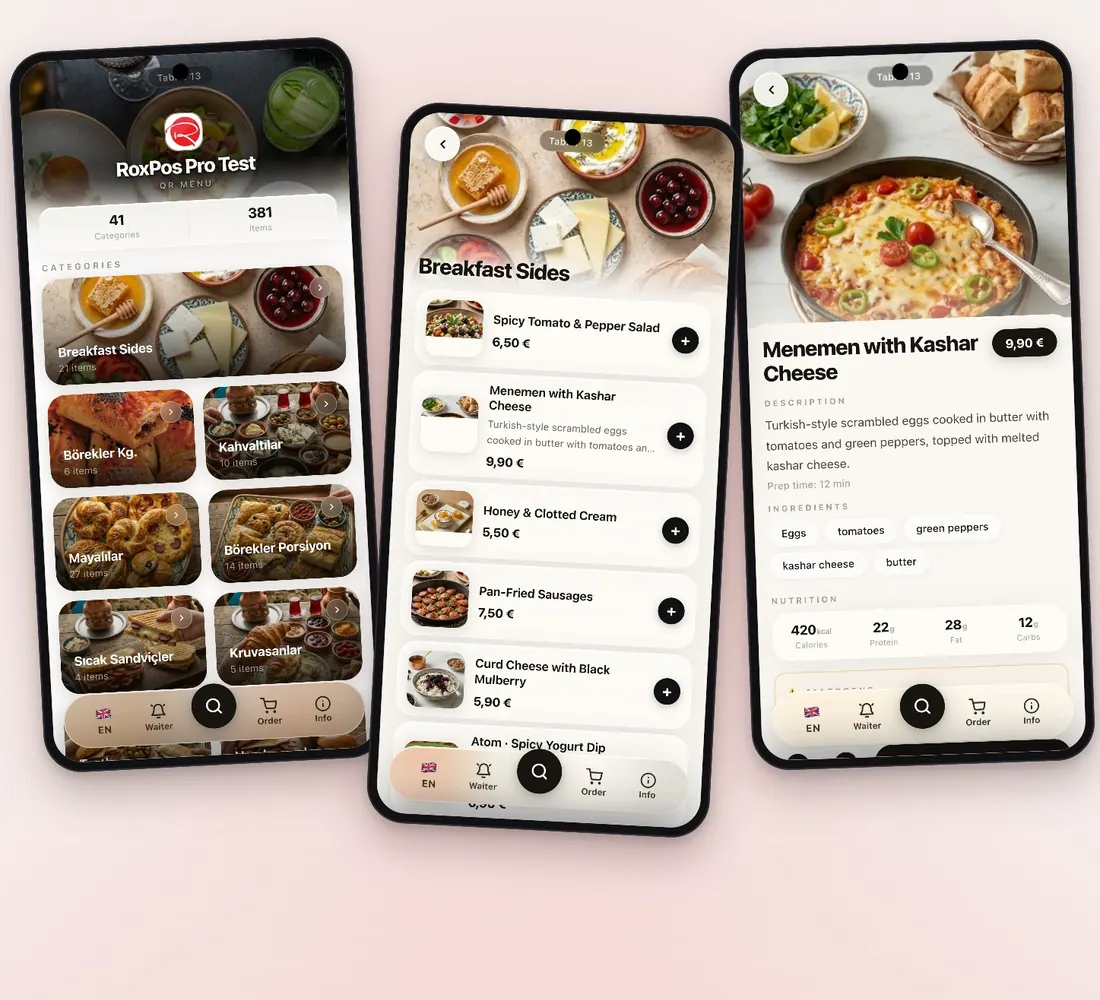
Feature

AI QR Menu Translation (8 Languages)
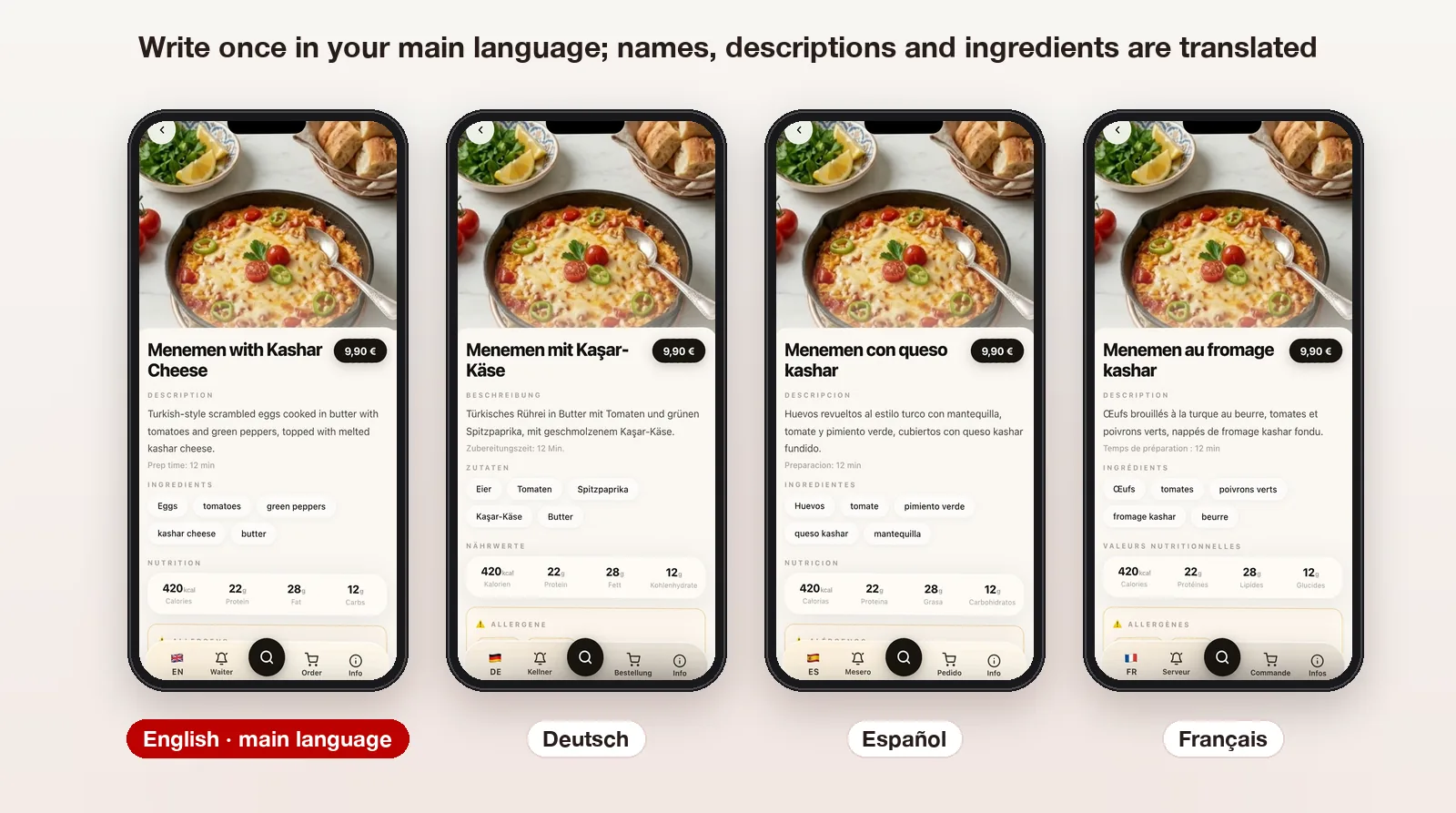
Write in your main language; names, descriptions, ingredients and categories are translated into your active languages for free

AI QR menu translation: product names, descriptions, ingredients and categories translated into 8 languages; only empty fields are filled, free.

15 days free · No card required · No setup

AI QR Menu Translation (8 Languages)

Key Highlights

QR menu in 8 languages

Translation goes into the languages you turn on for the QR menu, out of Turkish, English, German, Spanish, French, Italian, Russian and Irish; guests pick their language with the language button in the menu. The main language is the one you write your products in.
In bulk or one by one

“Fill missing translations” in QR Menu ▸ Language Options fills the empty fields of the whole menu step by step, with a progress bar. While editing a product or category, “Translate automatically” translates just that item; you see the text and press Save.

Your own translations stay

Only empty fields are filled: a translation you wrote or corrected by hand is never overwritten. As you add new products, the same button translates only the new ones.

Free

Translation uses no AI credits. To prevent misuse there is a daily usage limit per company; a restaurant menu stays far below it.

The same product on the RoxPos QR menu in four languages: the main language and three translations

How to use it

  1. Choose the QR menu languages

    In QR Menu ▸ Language Options, turn on the languages you want to offer and save. The main language is the one you write your products in.

  2. Fill the missing translations

    The automatic translation box shows how many products or categories are missing translations. Press “Fill missing translations”; names, descriptions, ingredients and category names are translated, and at the end you see how many fields were filled.

  3. Translate single items when needed

    “Translate automatically” in the product or category editor fills the empty languages from the main language; you check the text and press Save. The same button is in the RoxPos Pro mobile app.

  4. Correct any text by hand

    Change a translation by hand wherever you want; your text is kept and later automatic translations leave it alone.

What Is It For?

Venues with tourists and international guests

Guests scan the QR code at the table and read the menu in their own language, including what each dish is, its ingredients and allergen warnings, without asking the staff.

Menus that change often

When you add a dish of the day, a seasonal item or a new dessert, you only write the main language; “Fill missing translations” carries the new items into the other languages and existing translations stay as they are.

Polishing translations in your own style

Automatic translation is a good start; if you correct a house dish name or a brand name by hand, that text is kept and does not change in later translations.

Showing the menu on your own website

Translated names, descriptions and ingredients also reach your own website in 8 languages through the Menu API, so the QR menu and your site show the same text.

Related Solutions

Frequently Asked Questions

Which texts are translated?

The names, descriptions and ingredients of products shown on the QR menu, and the category names. Categories and products hidden from the QR menu are not translated.

Will my own translation change?

No. Only empty fields are filled; a field that already has text, whether written by hand or translated earlier and corrected, is never touched.

Does translation cost anything?

No. QR menu translation uses no AI credits and has no extra fee; there is only a daily limit per company to prevent misuse.

Does it work in the mobile app?

Yes. In the RoxPos Pro mobile app, “Translate automatically” in the product and category editor works the same way; to translate the whole menu in one go, use QR Menu ▸ Language Options in the web panel.