Feature

Kitchen Display App: RoxPos Kitchen
Live tickets, timers and Ready in one tap on the kitchen tablet or phone

RoxPos Kitchen puts live order tickets on the kitchen tablet or phone: timers, a Pending / Preparing / Ready flow and a chime for every new order.

15 days free · No card required · No setup

Kitchen Display App: RoxPos Kitchen

Key Highlights

Live board, colour by time

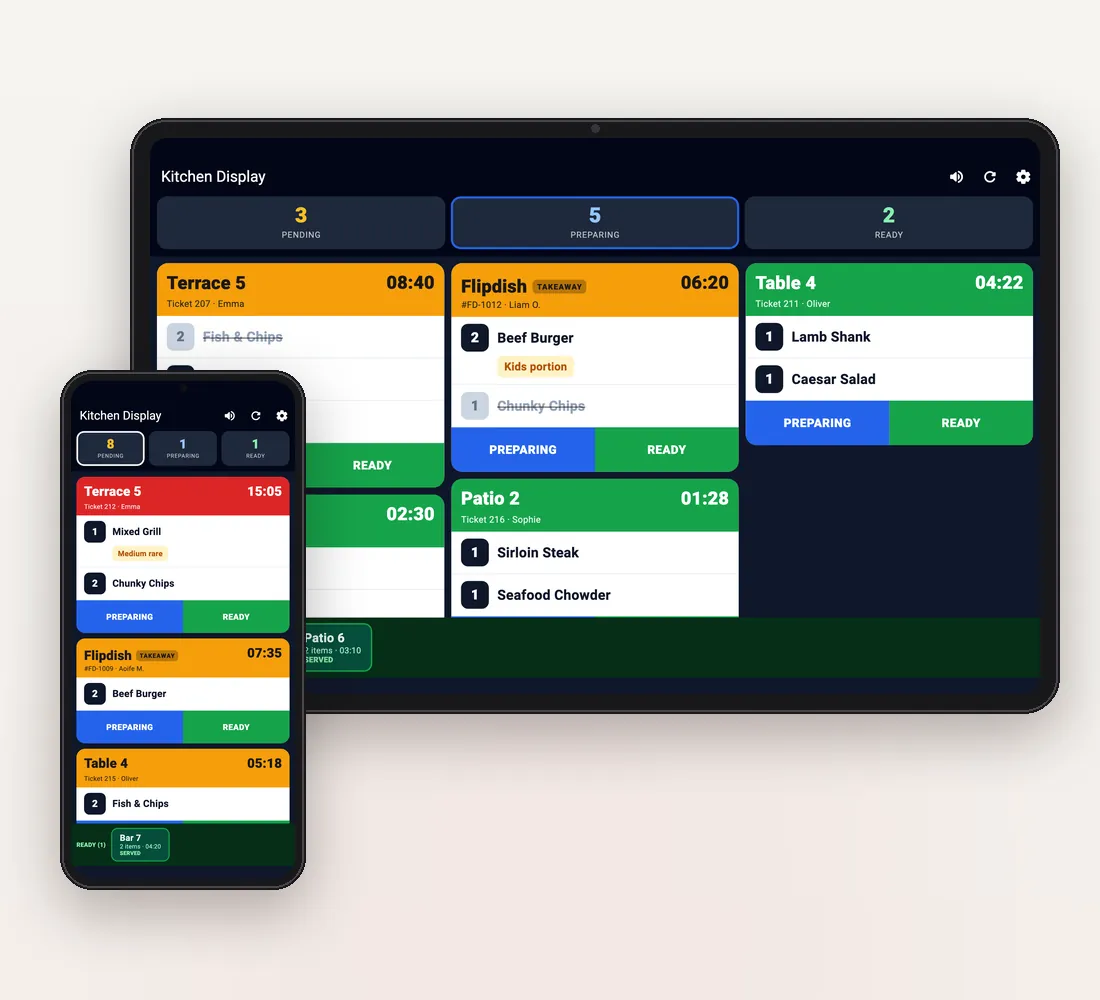
Table, takeaway and online orders appear within seconds, oldest on top. Every ticket shows the table, ticket number, server and elapsed time; the colour starts green, turns orange after 5 minutes and red after 10. Colour is never the only signal: the timer is written out and ready items are crossed out.

Pending → Preparing → Ready

Move a ticket to Preparing or Ready in one tap, or tap a single item to mark just that item ready. The Pending, Preparing and Ready counters at the top double as filters. Ready tickets wait in their own strip at the bottom and clear with Served; Undo fixes a mistap.

Staff alerted when it's ready

When a ticket is marked Ready, staff get a notification in the RoxPos Pro app. Online orders from the platforms connected in RoxPos (Flipdish in Ireland and the UK) sit on the same board with the platform name and a takeaway badge.

Built for real kitchens

A chime plays for every new ticket, with vibration on phones; mute it from the board in one tap or test it in Settings. The screen stays on while the board is open and the buttons are big. Sign-in is remembered; if the internet drops, an OFFLINE badge appears and the board catches up by itself when the connection is back.

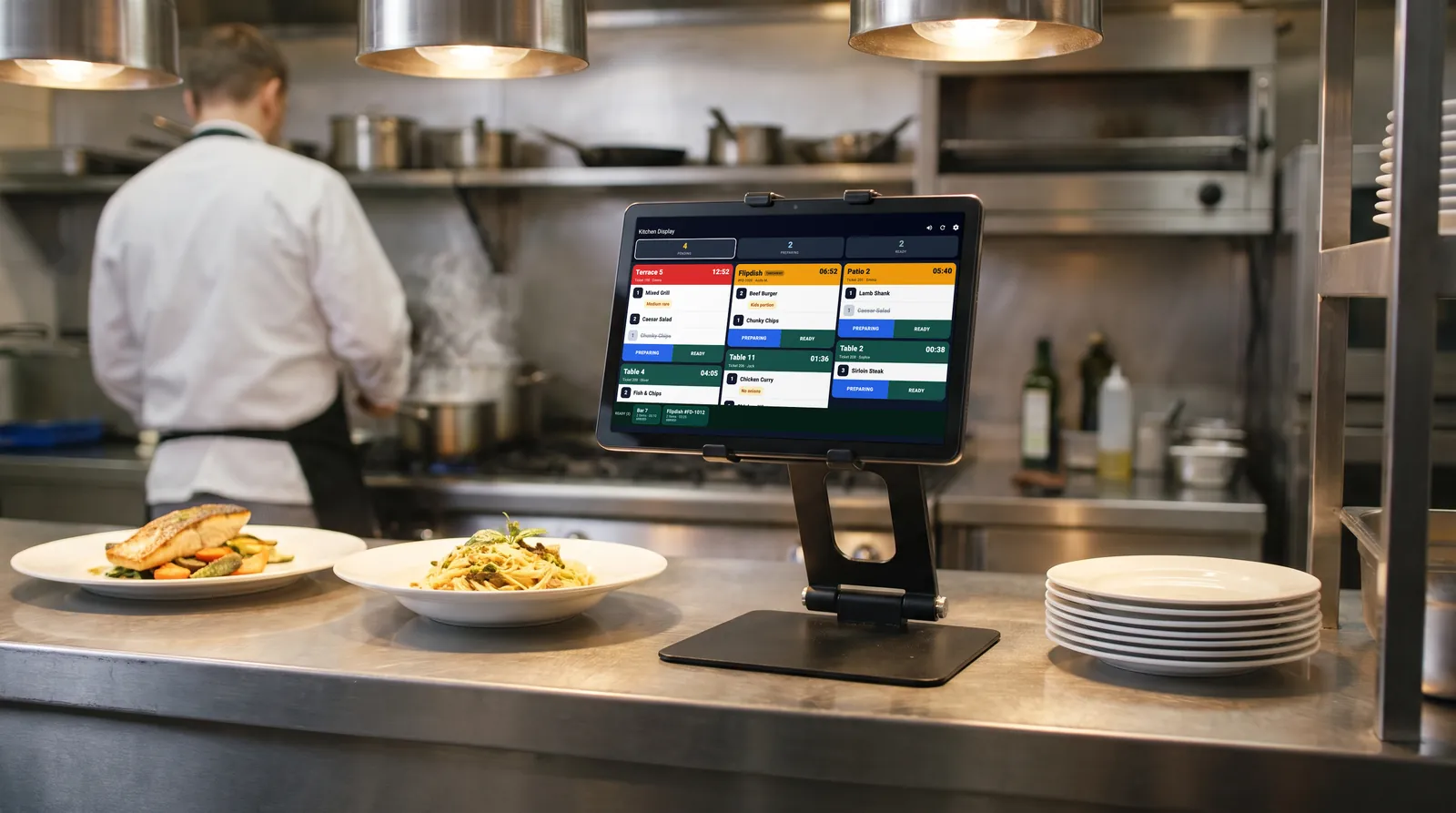
A tablet running RoxPos Kitchen on the pass of a restaurant kitchen, next to plated dishes ready to go

What Is It For?

Columns on tablets, one column on phones

The app runs on iPhone, iPad and Android phones and tablets. On a tablet tickets line up in side-by-side columns, on a phone in a single column, in portrait or landscape. A phone is enough for a small station such as pastry, bar or cold kitchen.

Product filter by printer routing

In the panel you choose which products the screen shows, based on printer routing: for example hot kitchen items only, no drinks. The rule is the same as for kitchen tickets, and you can stop paper tickets for the selected printers while the display is on.

Branches and shared kitchens

Staff who work at several branches pick one and can switch in Settings; the branch name is shown in the header. In a shared kitchen, orders from the branches you choose in the panel land on the same screen, with the branch name on each ticket.

Kitchen notes stand out

Extras, removed ingredients, cooking preferences and item notes such as “medium rare” or “no onions” appear in a yellow label under the product name, so cooks never have to open the bill.

Related Solutions

Frequently Asked Questions

How is RoxPos Kitchen different from the kitchen display in the panel?

Same orders, same account. The kitchen display is also a menu in the RoxPos Pro app and the web panel; RoxPos Kitchen is the focused app for the device in your kitchen. Both can run at the same time.

How do we sign in?

With a user who has kitchen display permission in your RoxPos business account. The owner creates users in RoxPos Pro or the web panel; there is no sign-up or purchase in the app. The branch's “Kitchen display (KDS)” switch in Settings ▸ General Settings must be on.

Do I need an extra licence?

No. The kitchen display is part of the RoxPos Core package, and RoxPos Kitchen works with the same licence. Current prices are on the pricing page.

Do online orders show up too?

Yes. Accepted orders from the delivery platforms connected in RoxPos, such as Flipdish in Ireland and the UK, sit on the same board as table orders, with the platform name and a takeaway badge.

What happens if the internet drops?

An OFFLINE badge appears on the screen and the board catches up by itself when the connection is back. Even after a restart the sign-in is remembered and the tablet reconnects on its own.

Which languages are available?

English, Turkish, German, Spanish, French, Italian, Russian and Irish; the language is changed in the app's Settings.