
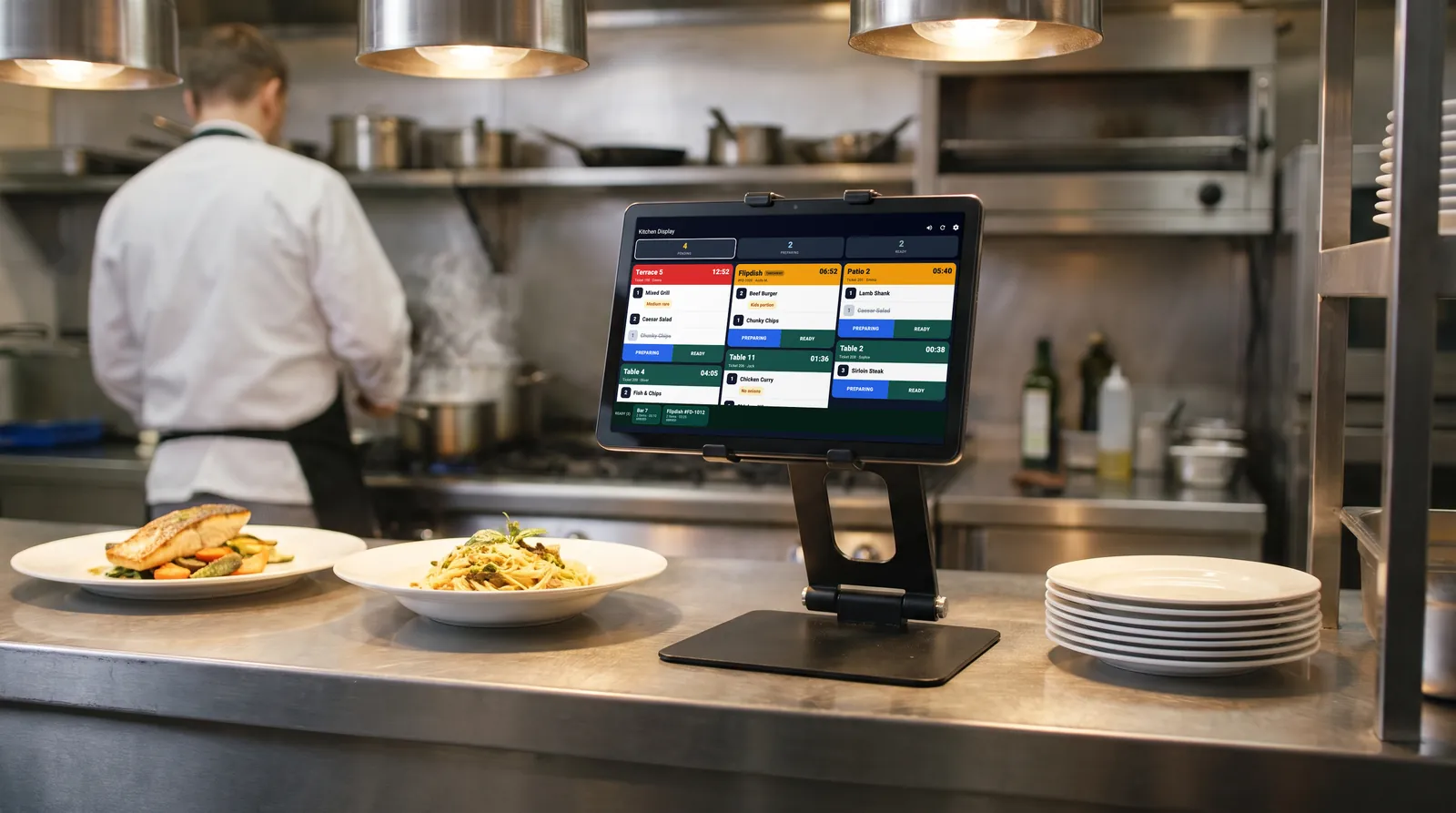
This guide covers the app side of a kitchen display: how to set up the kitchen tablet or phone with RoxPos Kitchen, who signs in and how to get through day one. The printer filter and self-service options are covered in a separate guide.
Before you start
- A tablet or phone that stays in the kitchen (iPhone, iPad, Android phone or tablet).
- Reliable Wi-Fi or mobile data in the kitchen.
- The RoxPos Core package: the kitchen display is included, with no extra licence.
- Someone with settings and user permissions in the panel: the owner or a manager.
Step-by-step setup
1. Turn on the kitchen display for the branch
In the panel, go to Settings ▸ General Settings and switch on “Kitchen display (KDS)” in the kitchen and recipe section. The switch is per branch and off by default; while it is off the app shows an empty board after sign-in.
2. Create a separate kitchen user
In Users, create a user for the kitchen and grant only the kitchen display permission. The kitchen device then cannot open the till, reports or settings, and the sign-in stays the same when staff change.
3. Choose which products appear
In the same section, choose which printers feed the screen. The default is all; pick only the hot-kitchen printer and drinks routed to the bar stay off the screen. The rule matches kitchen tickets: the product's printer mapping first, otherwise the category's. Details are in printer filter and self-service.
4. Choose and place the device
Use a tablet for the main line: tickets line up in side-by-side columns. A phone is enough for a small station such as pastry, bar or cold kitchen, where tickets run in one column. Put the device near the pass at eye level, away from steam and stove heat, and keep it on charge, because the screen stays on while the board is open.
5. Sign in with the kitchen user
On the kitchen device, open the RoxPos Kitchen app and sign in with the kitchen user; if the user belongs to several branches, pick the branch. The sign-in is remembered, so the board comes back by itself after a restart. The same screen also opens from the Kitchen Display menu in the RoxPos Pro app and the web panel.
6. Test the sound
Use the sound test in the app's Settings to hear the chime over the noise of service and set the device volume accordingly. The speaker icon on the board mutes or unmutes it in one tap, and phones also vibrate on a new ticket. Then add an item to a table at the till and watch the ticket arrive.
7. Run alongside paper for the first days
For the first days, keep printing kitchen tickets alongside the screen; once the team is used to moving tickets on the display, switch on the option that stops kitchen tickets while the display is on. If printers are selected in the filter, only those printers skip paper and stations such as the bar keep printing.
Reading the screen
- Counters are filters: tap Pending, Preparing or Ready to see only those tickets. The oldest ticket is on top.
- Colour and time: a ticket starts green, turns orange after 5 minutes and red after 10; the elapsed time is written on every ticket.
- Item and ticket: tapping an item marks only that item ready (it is crossed out); the buttons under the ticket move the whole ticket.
- Ready strip: ready tickets wait in their own strip at the bottom and clear with Served; after a mistap, use Undo in the Ready filter.
- Notes: extras, removed ingredients, cooking preferences and item notes appear in a yellow label under the product name.
What happens when you mark Ready?
When a table ticket is marked Ready, staff with access to that branch's table orders get a notification in the RoxPos Pro app; who receives it is set in Settings ▸ Notification Management. Online orders from the platforms connected in RoxPos (Flipdish in Ireland and the UK) sit on the same board with the platform name and a takeaway badge.
If the internet drops
An OFFLINE badge appears on the screen; when the connection is back, the board catches up by itself, including tickets that arrived in the meantime. If the venue's internet drops often, connecting the device to a phone hotspot is a stopgap.
First-week checklist
- Does every product reach the right screen? Check the printer mapping of anything missing.
- Can the chime be heard over service noise? Move the device or change the volume if needed.
- Are ready tickets cleared with Served? Tickets left open fill up the strip.
- Decide when to stop paper tickets; stations such as the bar can stay on paper.
- Check in Notification Management that ready alerts reach the right people.
RoxPos Kitchen
RoxPos Kitchen is the focused kitchen display app for the device in your kitchen, using the same account and orders as RoxPos Pro and the web panel. Screens and features are on the kitchen display app page; the display in general is on the kitchen display system page.