
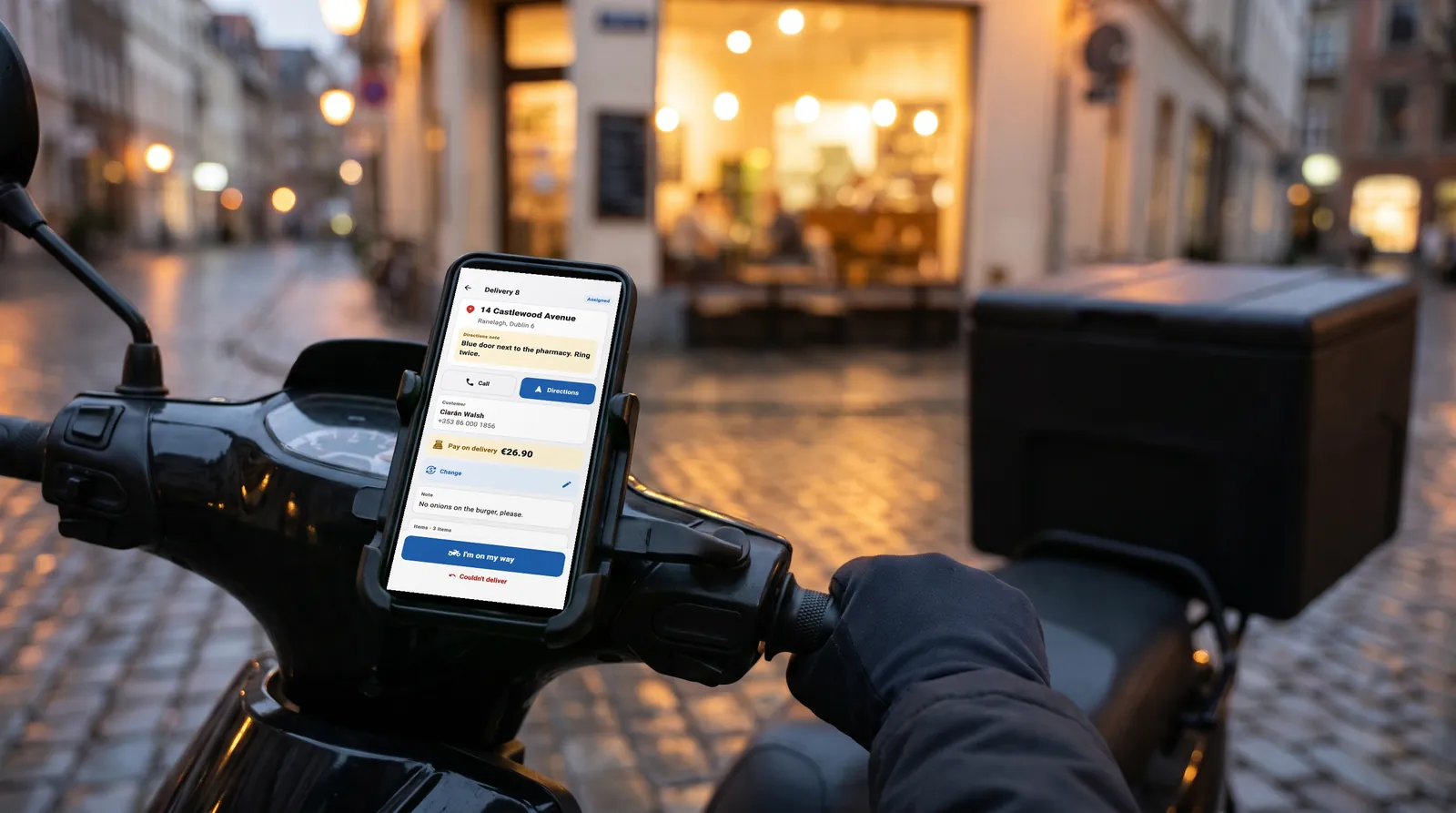
If you handle part of your deliveries with your own drivers, the hard part is not cooking the order but following it once it leaves the door. Calling drivers to ask where they are works with one or two of them; with more drivers, orders get mixed up, the cash at the till doesn't add up and nobody knows why a delivery was late. This guide explains how restaurants and ghost kitchens with their own drivers can set up courier tracking and run it day to day.
Three questions every restaurant with its own drivers asks
- Who has the order right now? Which driver carries which bag, who has left and who is at the door.
- Where is the money? Is the cash taken at the door still with the driver or already in the till, and which order did each card payment go to?
- How long do deliveries take? Time from assignment and from departure to drop-off, plus failed deliveries and their reasons.
Courier tracking answers all three with a single record that the till, the panel and the driver's phone share. When the driver marks a step (on my way, arrived, delivered), the till sees it within seconds, so nobody needs to call anyone.
Which orders go into the courier flow?
There are two sources. The first is phone orders: a delivery table is opened at the till with the customer and address. The second is online orders that your restaurant delivers itself; in Ireland and the UK these are Flipdish delivery orders. Orders delivered by the platform's own riders and collection orders stay out of the courier flow.
For online orders, the driver's “on my way” and “delivered” steps are also reported to the platform. If the platform returns an error, the delivery is still recorded and a warning appears in the panel; the order's platform status can be retried from the online orders screen.
Setting it up in five steps
- Turn on courier tracking. In Settings ▸ Integrations, the “Courier tracking” card under takeaway and phone orders works per branch and is off by default.
- Set up your drivers. In Users, give the Courier role or the “Can deliver (RoxPos Courier)” permission. A Courier-role account works only in the driver app and cannot open the till or the panel.
- Choose permissions per driver. Can take payments, can choose the payment type, sees customer details, can take waiting orders, sees own report. All are on for a new driver.
- Set your business location. On the courier tracking card, mark your business on the map or with latitude and longitude; it is used for the kilometre figures.
- Let drivers sign in. Drivers sign in to RoxPos Courier with the user the restaurant created; there is no sign-up in the app. A shift starts with one tap.
How a delivery runs during the day
- The order is opened. For a phone order, the address, delivery notes (door code, floor) and, if the customer will pay with a large note, the amount they will hand over are entered in the panel, in the delivery table's customer details.
- The till assigns the order to a driver, or, if the branch allows it, a driver takes it from the waiting list with “I'll take it”. On shift, the driver's phone sounds an alert for a new assignment even on a locked screen.
- When the driver picks up the bags, they tap “I'm on my way”; with several bags, one tap marks them all. Directions open in whichever maps app is installed on the phone.
- At the door, the driver can tap “I've arrived”, and the till and panel see that the driver is at the door.
- “Mark as delivered” records the payment type and amount. For phone orders the payment is posted to the bill, and the bill and delivery table close.
- If the drop-off fails, the driver taps “Couldn't deliver” and picks a reason (customer unreachable, address not found, customer refused, other); the order goes back to the waiting list.
If the signal drops, the driver's steps are queued on the phone and sent when the connection is back; the same delivery is never recorded twice.
Payment at the door and change
At the door the driver picks one of the branch's payment types: cash, card or any type you have added. Payments can be split, part cash and part card. If the till entered how much the customer will hand over, the driver sees the change to bring on screen, and the cash actually received is recorded. Non-payment types such as complimentary items, discounts or customer accounts cannot be chosen at the door.
Card payments are taken on your own card terminal, just as at the till. Choose “No device (record only)” for card payments on the courier tracking card: the driver then records the card payment in the app and it is posted to the order.
A driver without payment permission cannot complete an unpaid order: payment is taken at the till first, then the order is delivered. For orders already paid online, the driver only confirms the drop-off.
End of shift: settling up with drivers
In the panel, the Couriers tab under Settings ▸ Couriers shows each driver's shift status, the deliveries they are carrying and the cash they hold. At the end of the shift, “Settle with courier” hands that cash over to the till and clears the driver's balance; amounts are kept separately per currency. When an order is marked delivered at the till, the money is already there and is not added to the driver's balance.
Location and personal data
- A driver's location is collected only while on shift and shared only with the restaurant they work for; it stops when the shift ends or they sign out.
- The phone shows that location is being shared for the whole shift: a persistent notification on Android and the blue indicator on iPhone when the app is in the background.
- With “sees customer details” off, the driver sees no name, phone number or address; they navigate with Directions only and there is no call button.
- Drivers see only their own branch's deliveries and can only start and complete deliveries assigned to them.
Which numbers to watch
| Metric | What it tells you |
|---|---|
| Deliveries and failed deliveries | Workload per driver; the reasons for failed deliveries point to address or contact problems. |
| Average time (assignment → delivery) | From the moment the order goes to a driver until the door, including waiting at the kitchen. |
| Time on the road (departure → delivery) | Only the ride itself; useful for comparing areas and drivers. |
| Kilometres | From the GPS trace of each delivery; without a trace, an estimate from the business to the customer, marked as estimated. |
| Collections (payment type and currency) | How the money taken at the door splits; compare it with the end-of-shift settlement. |
| Shift time | Read together with the number of deliveries, it shows each driver's productivity. |
These figures are in the panel under Reports ▸ Courier; tap a row for the daily breakdown and the list of deliveries, or export to Excel. With permission, drivers see their own figures in “My report” in the app.
Courier tracking in RoxPos
In RoxPos, courier tracking is not a separate module and there is no per-driver fee. Drivers work in the RoxPos Courier app while the till and the panel use the same account. Screens and details are on the courier tracking app page.