
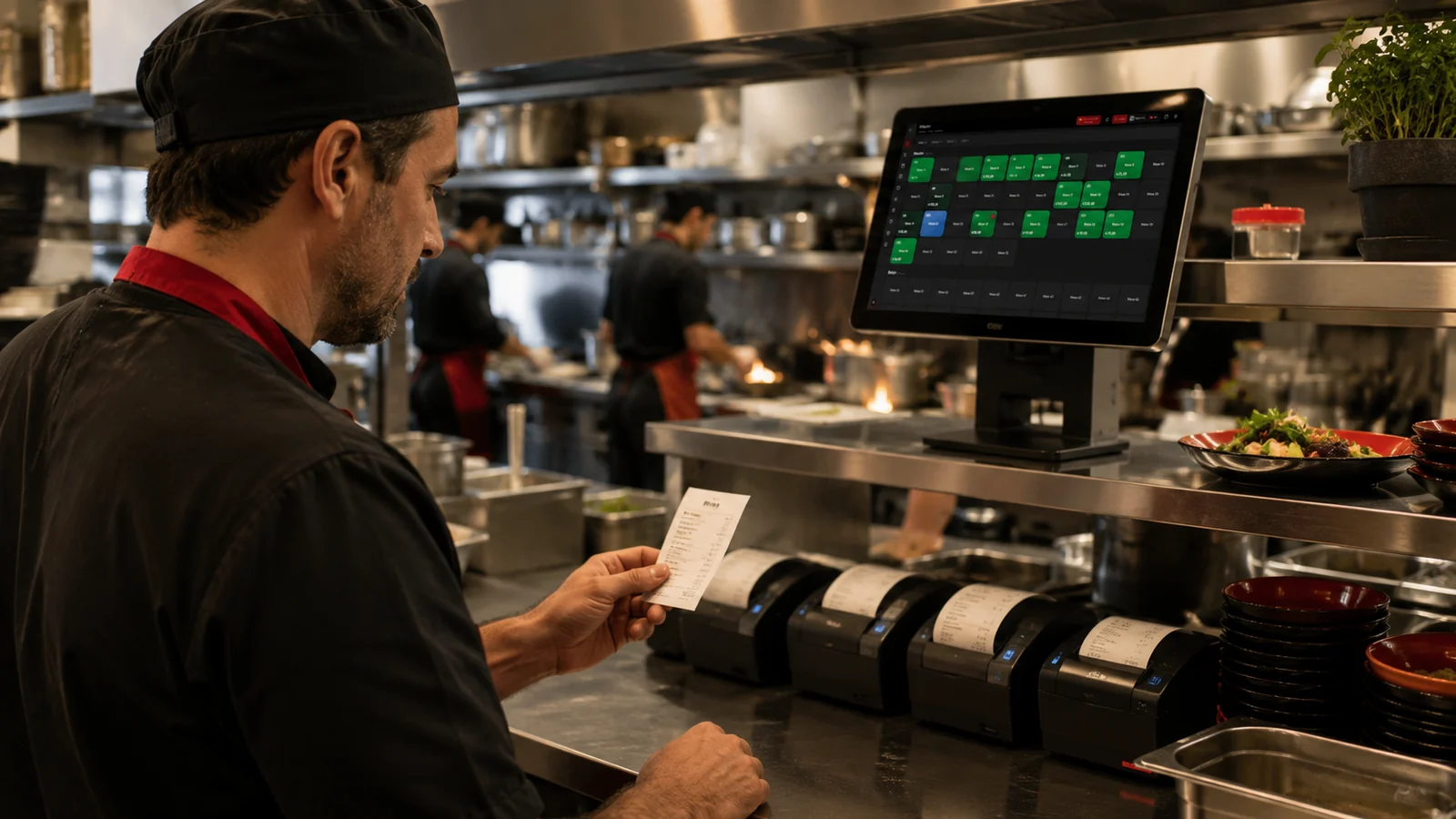
In What is a kitchen display (KDS)? we explained the idea behind the screen. This article covers the setup: which items reach the screen, where paper tickets stay, and what changes for self-service and online orders.
Turn on the setting and the permission
The kitchen display is not a separate app but a menu in the web panel and the mobile app. It is turned on per branch with the "Kitchen display (KDS)" switch under Settings › General Settings › Kitchen and recipes, which is off by default. Seeing the menu requires the "Kitchen Display (KDS)" permission, also off by default. The cleanest setup is a separate kitchen user with only that permission.
Reading the screen
- Counters: The PENDING, PREPARING and READY counters at the top double as filters. Tickets are sorted oldest first; each card shows the table, ticket number, waiter and elapsed time.
- Product details: Selected options (extras, removed ingredients, cooking preference) and the item note appear under the product name on a yellow label, so the cook never has to open the bill.
- Marking: Tapping an item row marks only that item ready; the buttons at the bottom of the card move the whole ticket. Ready tickets drop into the strip at the bottom and SERVED clears them.
- Sound: The screen chimes once when a new ticket arrives. In the panel you pick the tone from the speaker icon in the screen header or under General Settings › Notification Sounds; in the mobile app the speaker in the top bar turns sound and vibration on or off.
Printer filter and paper tickets
With KDS on, the same section lets you choose which printers feed the screen. The default is "All". Select printers and the screen shows only items routed to them, using the same rule as kitchen tickets: the product's own printer mapping first, otherwise its category's. Select the hot kitchen printer and drinks routed to the bar stay off the screen. The "No printer" option also keeps items without a mapping on the screen. Marking a ticket READY affects only the items visible on the screen. Mappings are covered on the kitchen printer management page.
Paper is decided by the "Do not print kitchen tickets while KDS is on" switch. With the filter on "All", no order ticket prints; with printers selected, only those printers' tickets are skipped and other stations such as the bar keep printing. Payment slips, bills, cancellation slips and the automatic ticket for online orders are not affected.
Self-service: payment first, cooking second
With table service the sequence is order, cooking, payment, so items leave the screen when the table closes. In self-service the guest pays first and the kitchen cooks afterwards. For this setup, turn on "Self-service: keep paid tables on the kitchen screen" in the panel: items from tables closed in the last 12 hours stay on the screen until the kitchen taps SERVED. The option is off by default.
Online orders and ready alerts
- Online orders: Accepted platform orders appear on the same screen with the platform name and a TAKEAWAY label; removed ingredients read "(-) Onion". An online ticket moves as a whole.
- Telling the courier: Marking an online ticket READY also sends the platform's "prepared" step when the order has one; the handover step stays at the till.
- Telling the waiter: When a table ticket is marked READY, staff in that branch who can access table orders get a notification in the mobile app, and a green badge appears on the table card. Under Settings › Notification Management you choose who receives "Table order ready" and "Online order ready": Everyone, Selected staff or Off. More in the restaurant notifications article.
Setup checklist
- Device: A tablet or computer that stays in the kitchen is enough; place it away from steam, where the chime can be heard.
- User: Give the kitchen a user with only the kitchen display permission.
- Filter: Map any unmapped products or select "No printer". The filter applies to the whole branch, so every kitchen display there shows the same list.
- Paper: For the first days print tickets alongside the screen, then turn on the no-print switch. With the filter on "All", no order ticket prints anywhere, bar included.
- Self-service and alerts: If guests pay first, turn on self-service, and choose who receives ready alerts. All features are on the kitchen display page.