Feature

Barcode Quick Sale and Camera Barcode Scanning
Sell at the till without opening a table: barcode scanner or phone camera, Quick Till 1/2/3, cash, card and split payment

RoxPos Quick Sale: sell without opening a table, scan with a barcode scanner or the phone camera, run several quick tills and take cash, card or split payments.

15 days free · No card required · No setup

Barcode Quick Sale and Camera Barcode Scanning

Key Highlights

Sales without opening a table

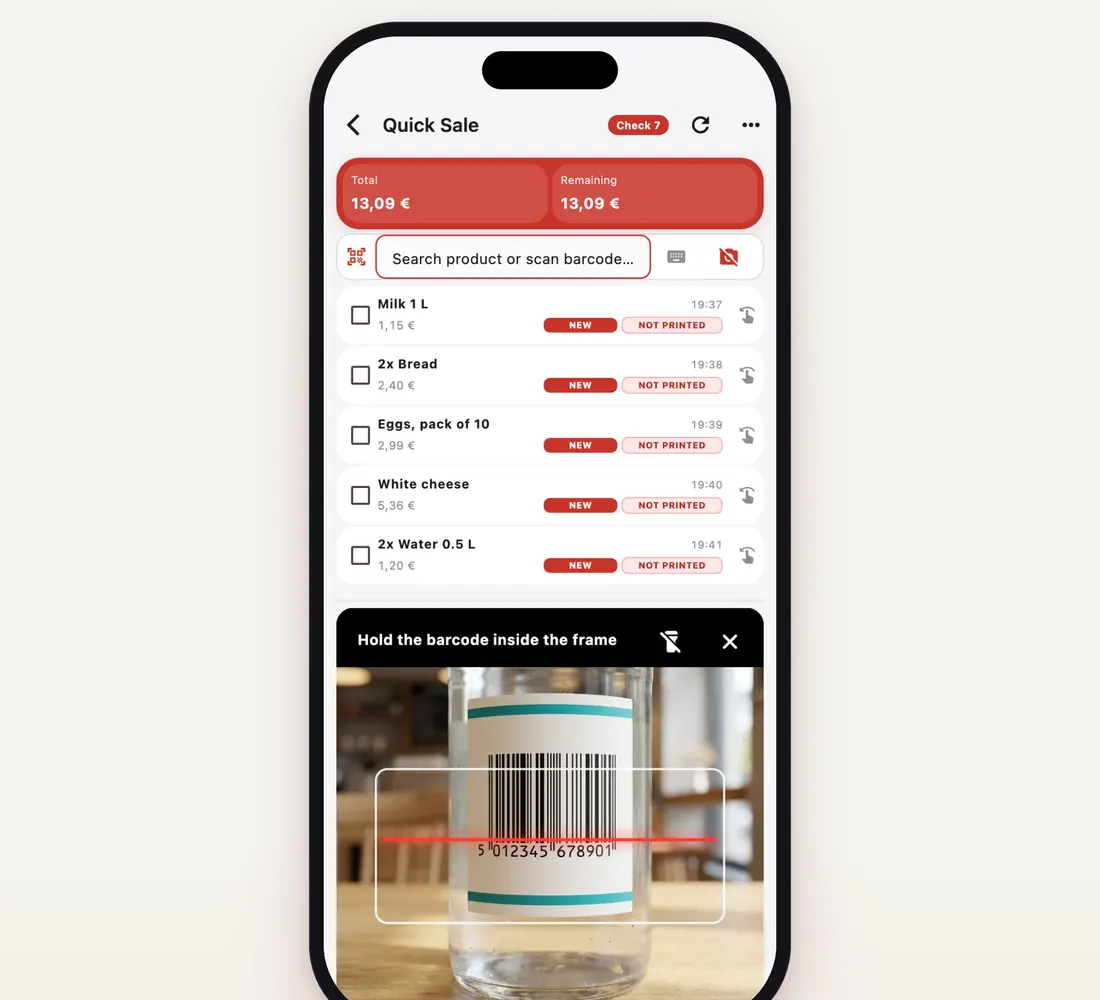
The Quick Sale screen works without opening a table: products go into the basket from a category, a search or a barcode; once paid, the sale closes and the till is ready for the next customer. In General Settings you can have the check or receipt printed automatically for quick sales.

Barcodes with the phone camera

In the RoxPos Pro mobile app, the camera button opens the camera in place of the product list and keeps it open; every product you scan goes into the basket. The same barcode is not counted twice while it stays in the frame, and “+1” adds one more; a light vibration confirms each read, a short beep means the product was found and a warning tone means it was not. There is a torch, and the camera pauses after 2 minutes without a scan. To close it after every scan, choose Display Settings ▸ Camera scanning ▸ Normal.

Quick Till 1, 2, 3

For businesses that sell at the counter, the web panel's main screen shows several quick tills (3 by default, from 1 to 6). Each till has its own basket and closes by itself once paid, so two cashiers can serve different customers at the same time. The number of tills is set per branch in Company Settings ▸ Business type and menus.

Scale, cash drawer, customer display

Items sold by the kilo, gram or litre ask for the quantity; with a scale turned on, the weight is read through Print Agent. The cash drawer opens on cash payments, and a second customer display shows the basket and total to the customer live (web panel and Android).

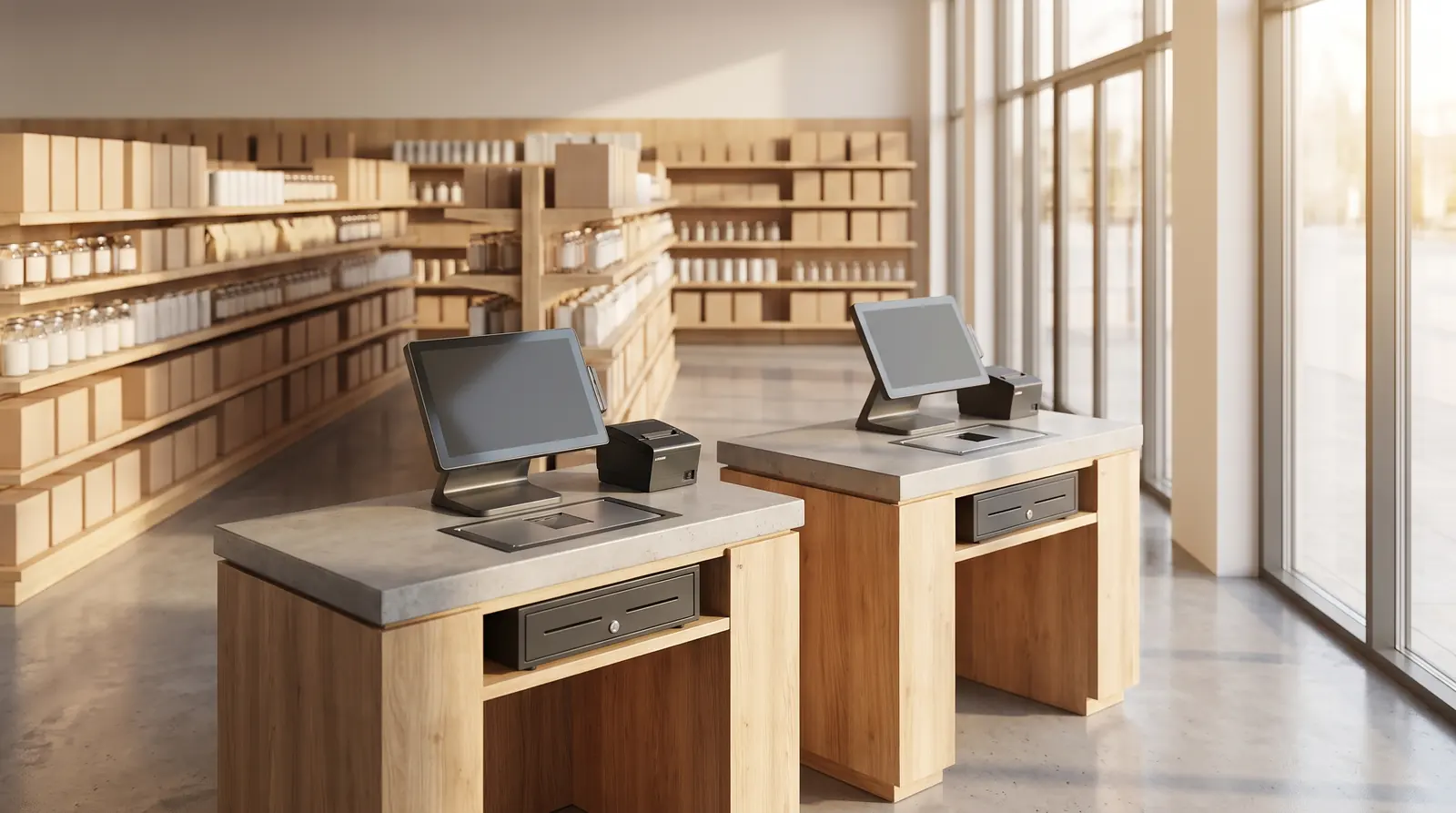
Two retail checkouts with touchscreen POS terminals, barcode scanners, receipt printers and cash drawers

What Is It For?

Cash, card, tab and split payment

At payment you pick cash, card or a payment type you have set up yourself; the amount can be split into parts, and part of it can go on the customer's account as a tab. Preset discounts, such as a student or staff discount, apply in one tap.

Barcode stock entries and counts

Enter the barcode on the product once; the same barcode is used in Stock Movements (lines entered by hand, by barcode or from Excel) and in stock counts. In the mobile app, counts can also be done with the camera. For products with stock tracking on, stock goes down with each sale.

Setting up products quickly

A product card holds the name, price, barcode, unit and product group (the VAT rate comes from the group). For many products, import the whole catalogue with the Excel template in Quick Actions and raise or lower prices in bulk. A product that appears on a supplier invoice but has no card yet is added with “+ New product” on that line during document stock entry.

Setup by business type

When you sign up you pick your business type (grocery, shop, coffee shop, kiosk…). On the first login to the web panel, a short wizard confirms how you sell (at the counter, at tables or delivery), asks a few yes / no questions and prepares the screens: quick tills on the main screen for counter sales, menus you don't use hidden. A short, skippable tutorial on barcodes, products and payment follows; you can watch it again from Help.

Related Solutions

Frequently Asked Questions

Do I need to buy a barcode scanner?

No. In the RoxPos Pro mobile app you can scan with the phone or tablet camera and pick products without a barcode on screen. At a busy till a dedicated barcode scanner speeds things up; in the web panel products are added with a barcode scanner or by typing the barcode into the search field.

What is the difference between Quick Sale and quick tills?

Quick tills are several copies of Quick Sale, each working the same way with its own basket. Businesses that serve at tables keep a single Quick Sale; for counter sales there are three quick tills by default, and you can choose from 1 to 6.

Can I switch my existing account to counter sales?

Yes. In the web panel, open Company Settings ▸ Business type and menus, set the sales mode to counter sales and choose the number of quick tills; table areas are removed and the quick tills are created in the Other area. The setting is per branch, and you can switch individual menus on or off in the same place.

Which devices support camera scanning?

In the RoxPos Pro mobile app on iPhone, iPad and Android phones and tablets. The camera opens only when you tap the button and stops when the app goes to the background. It works on the sales screen and in stock counts.