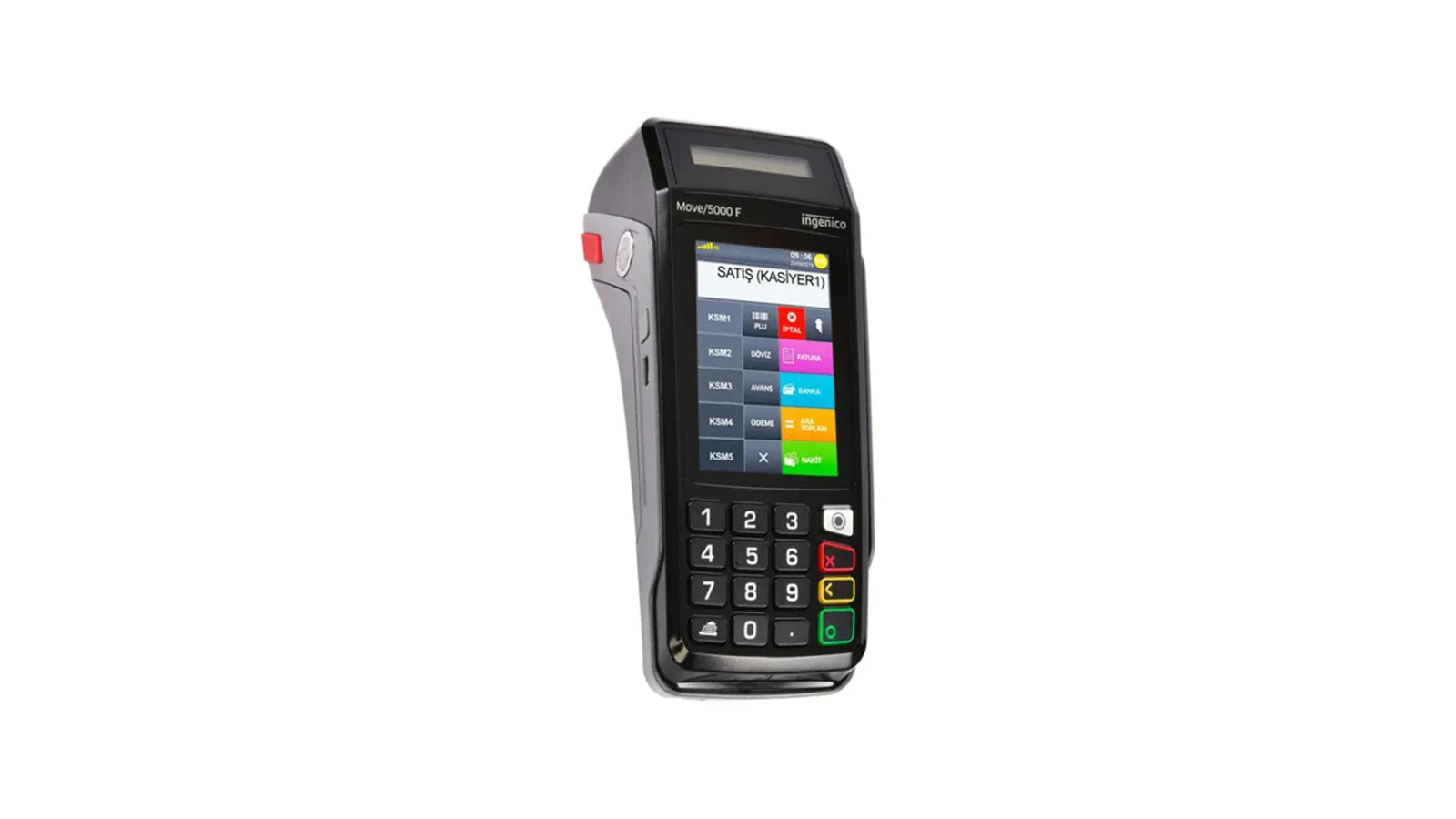
Support · Fiscal POS
Wired Ingenico (GMP3) Setup
Install the RoxOKCingenico program on the till's Windows PC; receipts sent from RoxPos print on the Ingenico fiscal POS connected over the same network or USB, and the payment is posted to the bill automatically.
Download RoxOKCingenico
⚠️ Extract the zip to a permanent folder (e.g. C:\RoxOKCingenico) and run RoxOKCingenico.exe; the program then starts with Windows. If "Windows protected your PC" appears, the file is not harmful: choose "More info → Run anyway".
Setup Steps
1. Download the Program
- Download the RoxOKCingenico zip with the download button on this page; Windows 10 / 11 (64-bit) is required, and .NET Framework 4.8 comes with Windows.
- Extract the zip to a permanent folder (e.g. C:\RoxOKCingenico). On first launch the program sets itself to start with Windows, so do not run it from the Downloads folder.
- If you will connect the device by USB, install the Ingenico USB driver (from your device's authorised service).
2. Set It Up in the RoxPos Panel
- In Settings > POS Integration, turn on Ingenico and choose Wired (GMP3) as the connection type.
- Enter the device's registration number in the Terminal ID field and choose the connection: on the local network the device's IP address and port, on USB the COM port (if left empty the program finds it). Save.
- In Settings > Payment Types, use Adapt for Ingenico to map cash, card and meal cards to the device's codes.
3. Sign In to the Program
- Run RoxOKCingenico.exe and sign in with your RoxPos username and password; if you have several branches, choose the branch.
- If the branch has a single wired device the program selects it by itself; if there are several, choose the one connected to this computer.
- The program pairs with the device, reads its VAT / department table and shows a green 'Hazır' (Ready). The panel also shows that the program is connected, its version and the device.
4. Test and Use
- On a table, choose the payment type and take the payment: the receipt prints on the device, for card payments the card is read on the device, and the result is written to the bill.
- With split payments (e.g. card + cash) a single receipt prints once all parts are taken. The pending job panel on the table shows the status, and a job not yet sent to the device can be cancelled.
- The web panel and the mobile app send the same way; since the program on the till prints the receipt, that computer and the program must be running.
Why Use It?
- Receipt and payment in one step: the fiscal receipt prints on the device with the payment type chosen in RoxPos, and the result is posted to the bill automatically.
- Split payment and basket discount — on the wired connection card, cash and meal card go on the same receipt; the bill discount is printed as a discount on the receipt total.
- VAT in the right department — the program reads the device's VAT / department table and picks the department matching the item's VAT rate; no products need to be set up on the device.
- Resilient to interruptions: if the device turns off or the cable comes out, the unfinished receipt is saved and continued from where it stopped once the device reconnects.
Frequently Asked Questions
What is the difference between wired (GMP3) and wireless (TMS)?
With the wired connection the RoxOKCingenico program is installed on the till's Windows PC; it prints the receipt sent from RoxPos on the device connected over the same local network or a USB cable, the payment type is chosen in RoxPos and collection starts immediately. With the wireless connection the device pulls the bill from RoxPos itself; no computer or program is needed, the cashier picks the payment type on the device and the result is written to RoxPos automatically.
Must the program stay open on the computer?
Yes. Because the program prints the receipt, the till computer must be on; the program starts with Windows and runs next to the clock (in the notification area). A receipt sent while the program is closed waits and prints once the program connects; the panel and the table screen show this state.
What happens if the device turns off or the cable comes out?
The program saves the unfinished receipt and continues it when the device reconnects. If the receipt had not yet been opened on the device, the job comes back as not printed and can be sent again. If the receipt's state cannot be known for sure after payment, the screen shows 'Dikkat' (Attention) and asks you to check the device's last receipt; the receipt is never printed a second time on its own.
Can I cancel a printed receipt?
A job not yet sent to the device can be cancelled from the pending job panel on the table. A printed fiscal receipt is a legal document and cannot be cancelled from RoxPos; do the card refund from the device's menu.
Is the payment type chosen on the device or in RoxPos?
With the wired connection it is chosen in RoxPos and is required; it must be a type linked to the fiscal device, and types not linked to it are never sent to the device. The Adapt for Ingenico button in Settings > Payment Types maps cash, card and meal cards to the device's codes. With the wireless connection the bill goes without a type and the cashier picks it on the device.
Which Ingenico devices does it work with?
With Ingenico (Worldline) fiscal POS devices that support the GMP3 protocol; the device must be on the same local network as the till computer or connected by USB cable. On live devices the program may need to be registered on the device; our support team guides you through the first setup.