1. Download Print Agent
- Download the setup file for your operating system from the download button on this page (Windows .exe or macOS .pkg).
- Download links are also available in the admin panel (Settings > Printers) and shared by our support team.

Support · Other
Complete the Print Agent setup step by step to define your local network printers in RoxPos and automate order and check/receipt printouts.
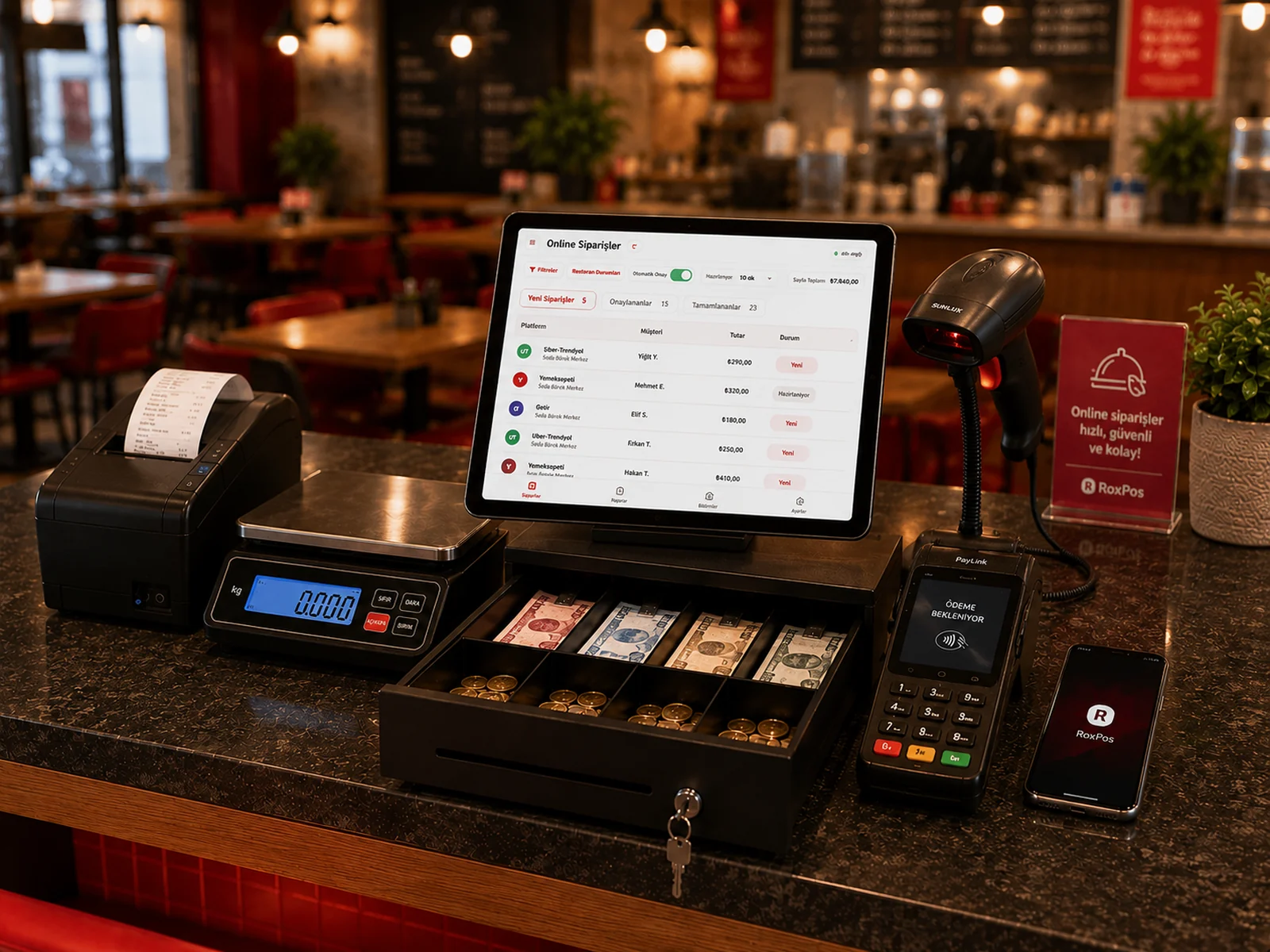
⚠️ If you see a "not safe / unidentified developer" warning, the file is not harmful: on macOS, right-click the file → Open → Open again; on Windows, choose "More info → Run anyway".
Yes. You can define printers on the local network with IP/IP+Port, route products to different printers and send the same product to multiple printers.
Print Agent forwards print jobs from the panel to your local printers so you get automatic printouts; it removes the need for manual printing.
Printing happens over the local network. Even if the business internet goes down, you can keep your devices on the same network with a phone hotspot and continue operating.
This is normal, the file is not harmful. On macOS, RIGHT-CLICK the setup file → Open → click Open again in the dialog. On Windows, choose "More info → Run anyway". (In future releases, a signed package will remove this warning entirely.)
The agent runs hidden in the background; it does not keep a window open on screen. It starts automatically every time the computer turns on. It is hard to close it by accident.