
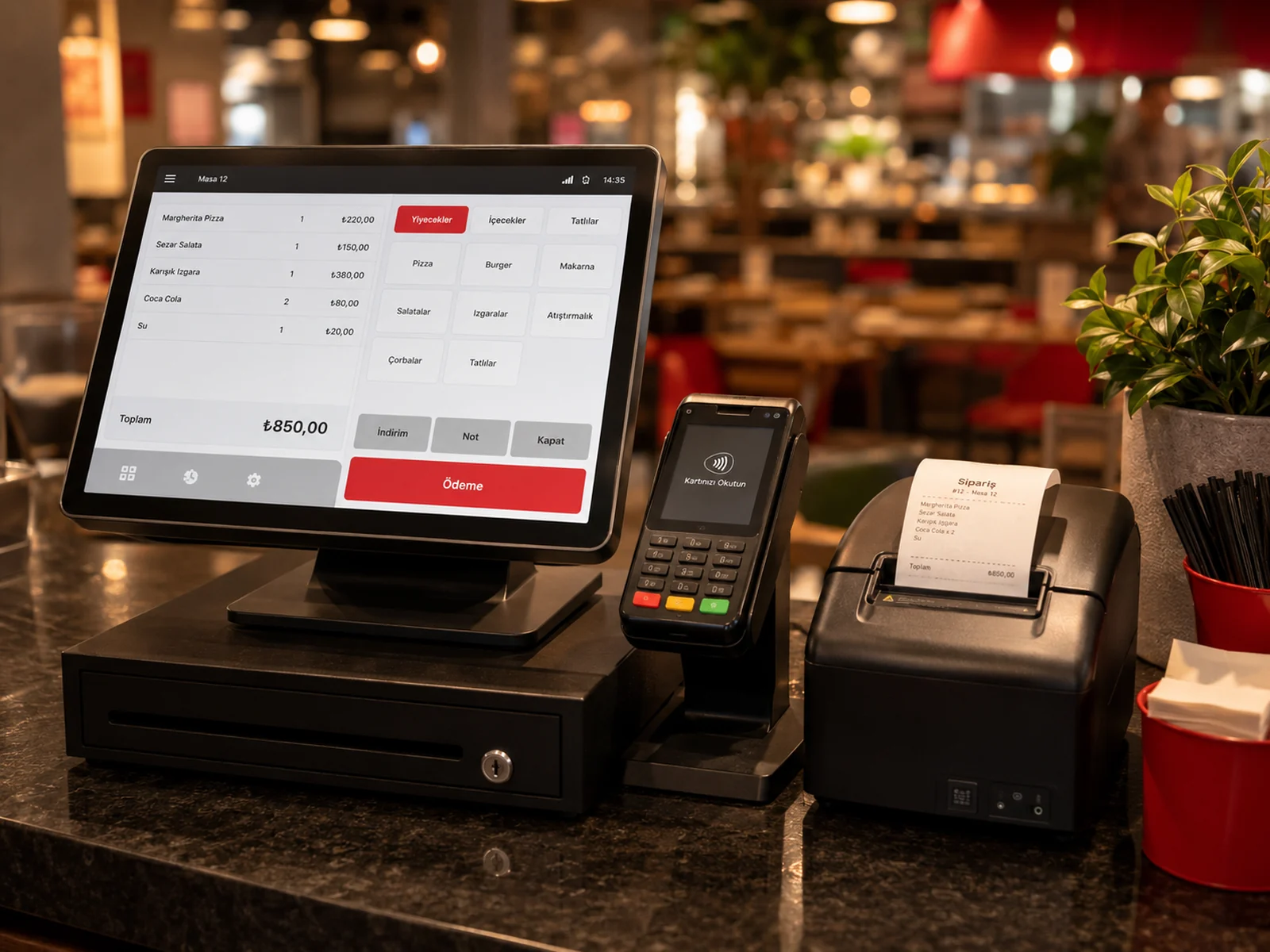
Choosing the brand is only half of a fiscal POS integration; the other half is how the device connects to the till. Depending on the connection type, the same brand can hold the basket in a list, drop it straight onto the payment screen or pull the order from the cloud by itself. This article explains the connection types for Beko, Hugin and Pavo and which suits which business; for an overview of all five brands, see our fiscal POS integration guide.
Beko: List Mode and Instant Mode
In List Mode the sent basket lands in the device's basket list; the cashier picks it in turn and chooses the payment type on the device. This is the standard for restaurants with table service. In Instant Mode the basket goes straight to the device's payment screen, which suits markets, kiosks, self-service and fast-food outlets that take payment at the till right away. In Instant Mode the payment type is chosen in RoxPos and is required by default; you can switch that off with 'Payment type required' under Settings › POS Integration. The mode follows the integration setting rather than the table, because the device works in one mode at a time.
Hugin: PC Link and Cloud Link
With PC Link the till connects to the device over the local network: the print agent does this for the web panel, and the phone itself does it in the mobile app. Because RoxPos drives the document and the payment step by step, the payment type is chosen when sending and is required; this is the fastest way to collect. With Cloud Link the device pulls orders from the RoxPos cloud by itself; no network setup is needed, several tables can wait in the device's list, and the cashier chooses the payment type on the device. With both types, items, VAT rates and discounts go onto the document line by line, and card, cash and meal-card payments can be taken on the same document.
Pavo: REST and UniCloud
With REST the till connects directly to the device over the same Wi-Fi or local network; when you press 'Pair' in RoxPos, a confirmation screen appears on the device and a single 'Accept' completes the pairing. With UniCloud, pairing goes through the Pavo cloud: you enter the code generated by RoxPos via the pairing icon on the device's sales screen. The till and the device do not need to share a network, and every table lands in the device's pending list. With both types, items and VAT rates go to the device, cash, card and meal-card collection is completed on the device, and the result is written to RoxPos automatically. If you choose the payment type in RoxPos, the device opens with that type; if not, the cashier picks it on the device.
Which connection type suits which business?
| Connection type | How the basket reaches the device | Payment type | Best for |
|---|---|---|---|
| Beko List Mode | Lands in the device's basket list | Cashier picks it on the device | Table service, collection at the till in turn |
| Beko Instant Mode | Goes straight to the payment screen | Chosen in RoxPos (required by default) | Markets, kiosks, self-service, fast food |
| Hugin PC Link | The till connects over the local network | Chosen in RoxPos, required | Till and device on the same network, fastest collection |
| Hugin Cloud Link | The device pulls the order from the RoxPos cloud | Cashier picks it on the device | No network setup, tables queued on the device |
| Pavo REST | The till connects over the same network | Optional, can be made required in settings | Till and device on the same network, speed matters |
| Pavo UniCloud | The device pairs through the Pavo cloud with a code | Optional; if not chosen, the device asks | Different networks or tables queued on the device |
- Only one fiscal POS brand can be active in a branch at a time; before switching brands, make sure no sends are still pending on the device.
- Map the payment types that go to the device, such as cash, card and meal card, to the device codes; the brand template button on the payment types screen sets the codes in one go. Types not linked to the device, such as Store Credit, are never sent to it.
- A sent table stays locked until the device completes the transaction or the send is withdrawn; in the rare case that no result comes back from the device, the lock can be released in the web panel under Settings › POS Integration › Beko Operations › Locked Tables (this section appears while Beko is on).
- For local network connections (Hugin PC Link, Pavo REST), if you work from the web panel, check that the print agent is running on the till computer.
Choose the connection type based on how your business collects payment rather than on device specifications. For brand-specific setup steps, see the Beko, Hugin and Pavo support guides.