Feature

QR Menu and Contactless Ordering
One QR code, order from the table

Guests scan the QR code at the table, browse a multilingual menu and their cart drops straight onto the check. Includes waiter call, product photos and allergens.

15 days free · No card required · No setup

QR Menu and Contactless Ordering

Key Highlights

Multilingual menu (8 languages) — guests browse in their own language.

The QR menu is presented in 8 languages — Turkish, English, Spanish, German, Russian, French, Irish and Italian — and the guest switches to their own language with a single tap. Category names, item descriptions and prices all appear in the chosen language, so foreign visitors can browse the menu comfortably without asking staff. This removes the language barrier and speeds up the ordering process.
Cart and order drop straight onto the check; kitchen/cashier see it instantly.

As soon as the customer confirms their cart, the order is sent into the system linked to their table and shows up on the staff screen as an order awaiting approval. Once the waiter approves it, the items are written onto the table's check and preparation begins; because the step of a waiter typing the order from scratch is removed, transcription errors are reduced. This way the order is delivered quickly while still passing through a single-tap check before service.

Waiter-call button — the request reaches staff with the table number.

When the customer taps and confirms the call-waiter button in the menu, an instant notification reaches the team along with the number of the table they are sitting at. Because staff see directly who is asking for help and from which table, there is no need to scan the floor in vain. This ensures the service request reaches the right person quickly and shortens the guest's waiting time.

Product photos and allergen/ingredient info shown on every item.

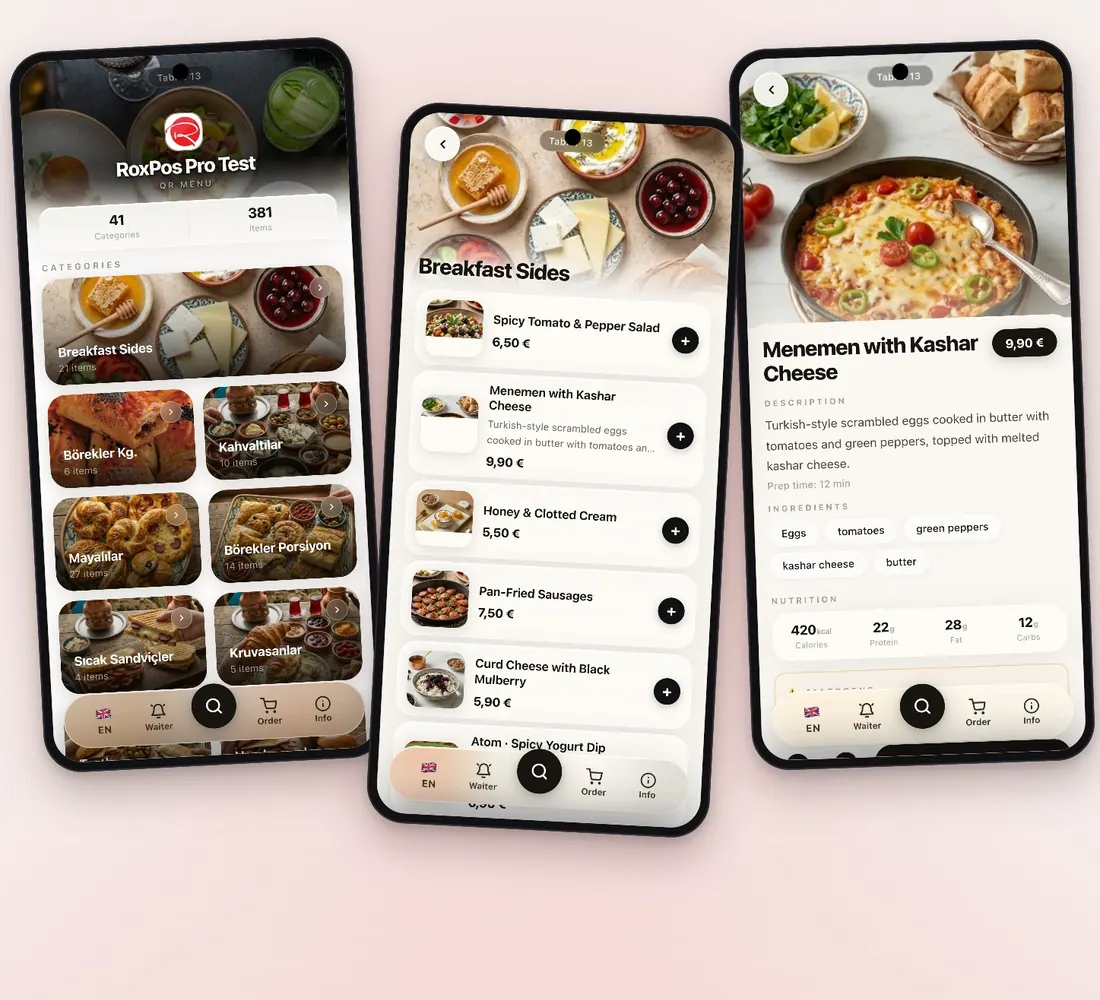
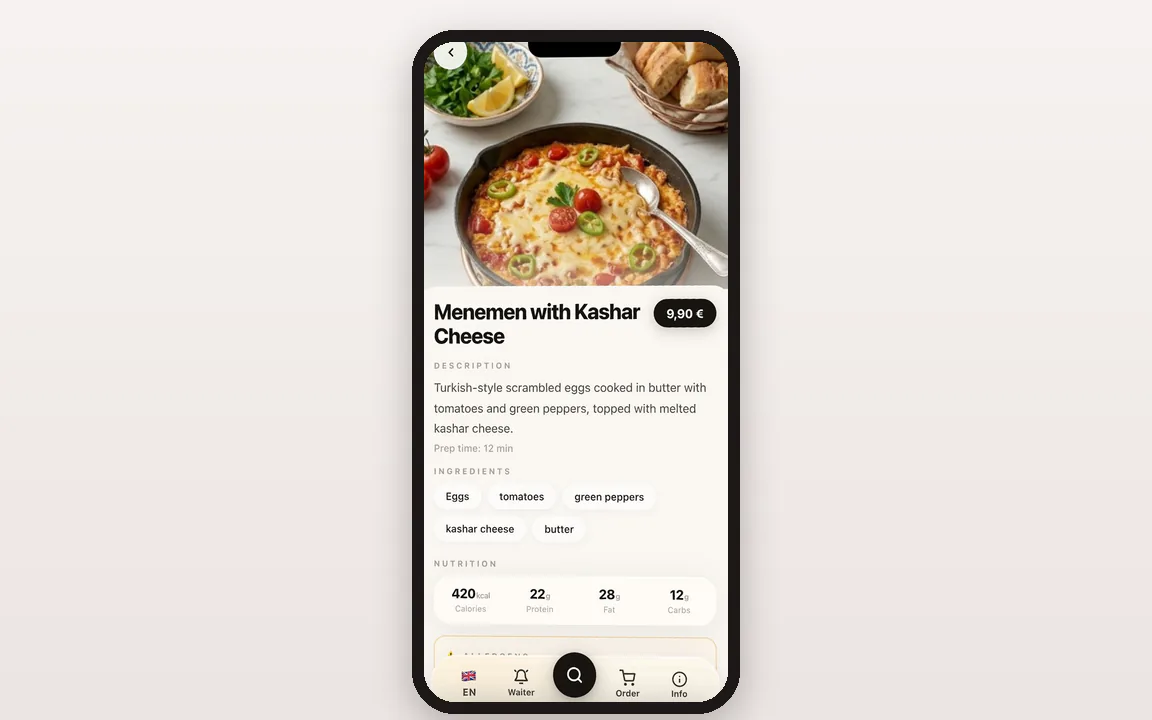
On every menu item, the product image, its description and its ingredients are presented together, so the guest clearly sees what they are ordering. The image-supported presentation helps them choose unfamiliar dishes with more confidence and place an order that matches their expectations. Listing the ingredients openly gives guests who want to know what they are consuming the chance to make an informed choice.

What is in the QR menu?

A walk through the menu your guests open on their phone and the QR Menu screens you manage it from in the panel.

The menu on the guest's phone

The menu on the guest's phone

Scanning the code opens the menu in the browser. Guests browse categories or search by dish or ingredient; tapping an item shows its description, ingredients, nutrition facts, preparation time and allergens on one screen.

  • Badges: New, Chef's Choice, Popular, Vegetarian, Vegan, Gluten-free, Halal
  • Item options (paid extras or required choices) in the item detail
8 languages and free automatic translation

8 languages and free automatic translation

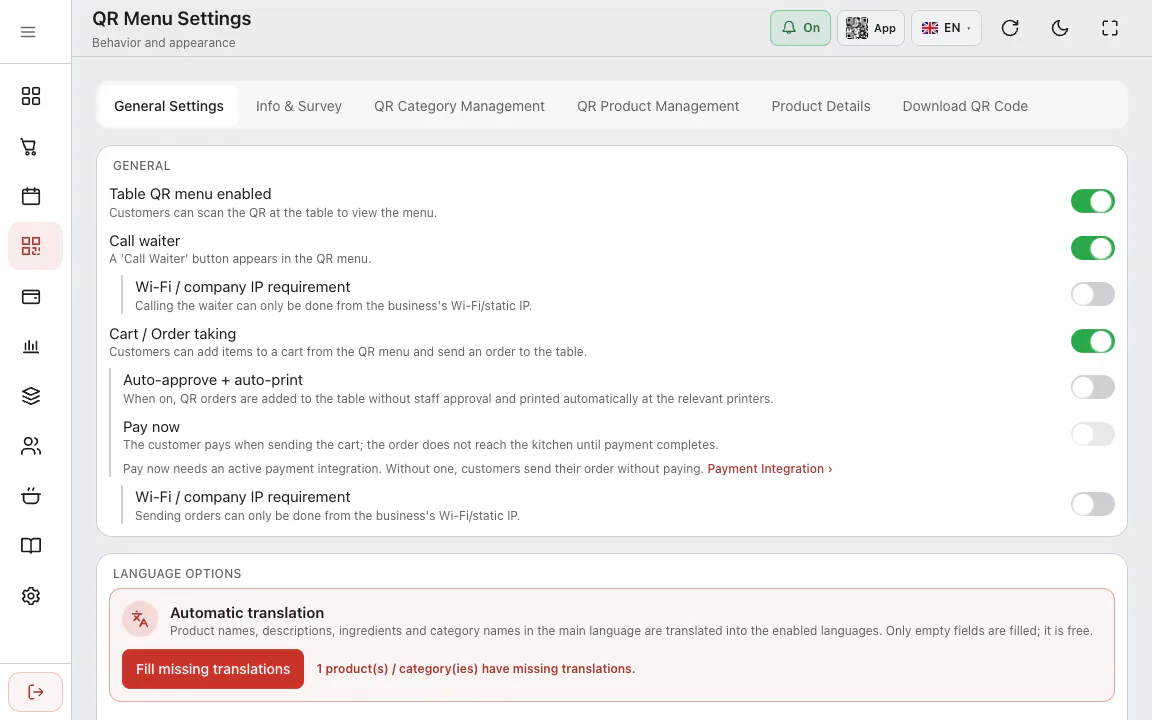
In QR Menu ▸ General Settings ▸ Language Options you turn languages on or off and pick the default. “Fill missing translations” translates product names, descriptions, ingredients and category names from the main language into the enabled ones; it only fills empty fields and is free.

  • When editing an item, “Translate automatically” translates just that item; you check it before saving

Logo, colour and announcement image

In General Settings you set the company logo, a background image, a popup banner shown when the menu opens and the theme colour. The Menu Preview tab shows the guest's screen before you save.

Which items appear, in which order

In QR Category Management and QR Product Management you drag categories and items into order and hide or show each with “Show on QR”. Items are shared with the POS, so a name or price change applies to both and nothing needs reprinting.

Table QR, general QR and price list

In the Download QR Code tab you download the general menu QR or, via “Select table”, a table's own code as a PNG, or copy and share the link. Ordering and waiter calls only work with a table code; the general code shows the menu.

  • Price List (PDF): optionally with descriptions, allergens, nutrition facts and a price update date
Venue information page

Venue information page

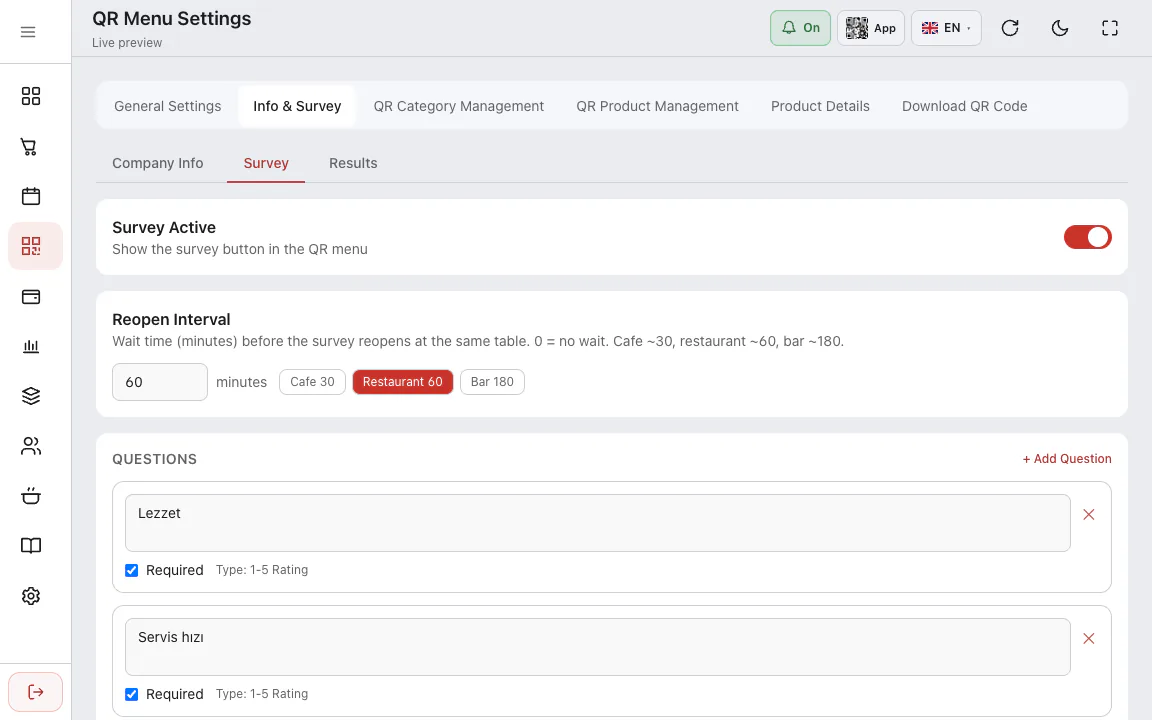
The description, address, phone, working hours and notes you enter in Info & Survey ▸ Company Info appear on the menu's Info page. A map link adds a “Get Directions” button, and you can add Instagram, Facebook, Twitter, Tripadvisor and website links.

Details →

What Is It For?

Taking orders without depending on a waiter during rush hours

During busy hours when the dining room is full, guests can scan the QR code at their table and build their cart themselves, so they don't have to wait for a waiter to come to the table to place an order. Because the order lands in the system instantly and appears on the staff screen as an item awaiting approval, even a limited number of staff can serve more tables at the same time and the service flow does not get clogged.

Offering foreign guests a menu in their own language in tourist areas

A business operating in a tourist area can offer foreign guests a menu in English, Spanish, German, Russian, French, Irish or Italian thanks to the 8-language QR menu, without depending on staff speaking a foreign language. Because the guest reads item descriptions and prices in their own language and orders accordingly, misunderstandings are reduced and the welcome experience leaves a professional impression.

Publishing menu and price changes instantly with no printing cost

Because it is a digital QR menu, adding a new item, updating a price or hiding a sold-out dish is done instantly, and the change reflects on all tables at the same moment. Since the business no longer has to reprint menus for every price or campaign change, it is freed from printing costs and can keep its menu up to date at all times.

Reducing service errors and wait times with self-service ordering

When the guest selects and confirms their own order, the chance of a waiter mishearing it and recording it incompletely or incorrectly disappears, and the requested items are passed into the system correctly. Because the order lands in the system instantly and appears on the staff screen, approval and preparation begin earlier, so the waiting time at the table shortens and guest satisfaction rises.

Related Solutions

Frequently Asked Questions

How does the QR menu work?

Each table gets its own QR code. When a guest scans it, the menu opens with no app install; they add to cart and send the order, which drops straight onto that table's check.

Does the guest need to install an app?

No. The QR menu opens in the browser; no app or sign-up is required.

Is the menu multilingual?

Yes. The menu can be served in 8 languages (TR/EN/ES/DE/RU/FR/GA/IT); guests pick their language and item names and descriptions appear in it.

Can I add allergens and product photos?

Yes. You can add a photo, ingredients and allergen info to each item; these appear in the item detail on the menu.

What is the difference between the general menu QR and a table QR?

The general QR only opens the menu, which suits a window, a flyer or a takeaway bag. A table QR opens the menu under that table's name; ordering from the cart and calling a waiter work with this code, and orders go to that table's check.

Can I also produce a printed price list?

Yes. Price List (PDF) in the Download QR Code tab lists your menu items with prices; you choose whether to show descriptions, allergens and nutrition facts, and set the price update date. A QR image can be added to the page too.

How do I hide an item from the menu for a while?

Turn off the item's “Show on QR” switch in QR Product Management. It disappears from the menu right away but can still be sold at the POS, and returns to the same spot when you turn it back on.