1. Get the Key from the Uber Eats Trendyol Go Panel
- Log in to your Uber Eats Trendyol Go partner/admin panel.
- From the POS / Integration menu, select RoxPos as the provider.
- Generate and copy the integration key (secret key) provided to you.

Support · Delivery
Drop your Uber Eats Trendyol Go orders onto the RoxPos operation screen and manage kitchen, cashier and delivery processes in a single flow.
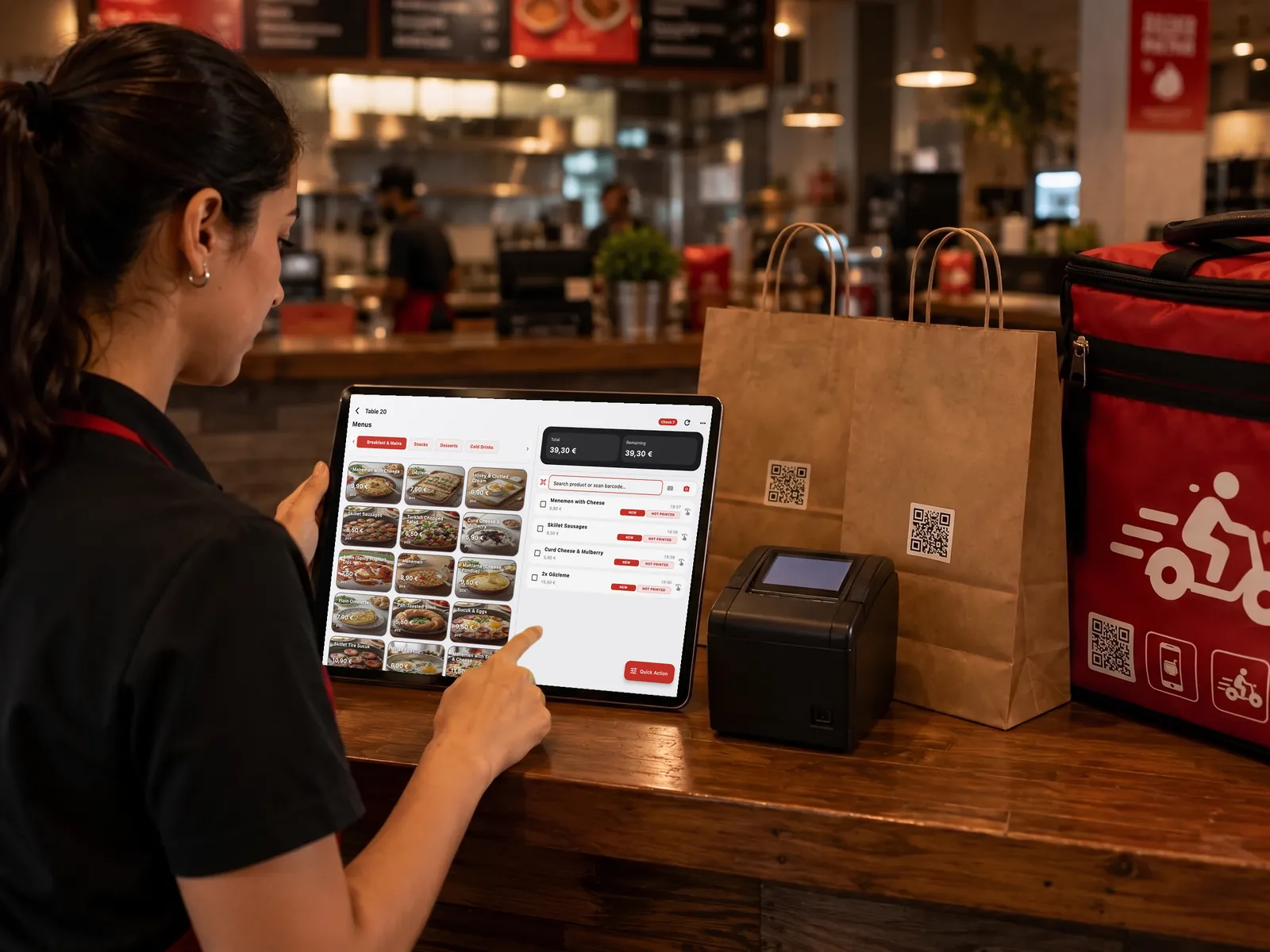
Yes. Once the integration is defined, Uber Eats Trendyol Go orders come into RoxPos automatically and, if you wish, are routed to the printer.
Yes. You can define a separate integration for each branch and manage all branches from a single account.
Yes. By configuring the automatic confirmation and preparation time settings from the panel, you gain speed during busy hours.