
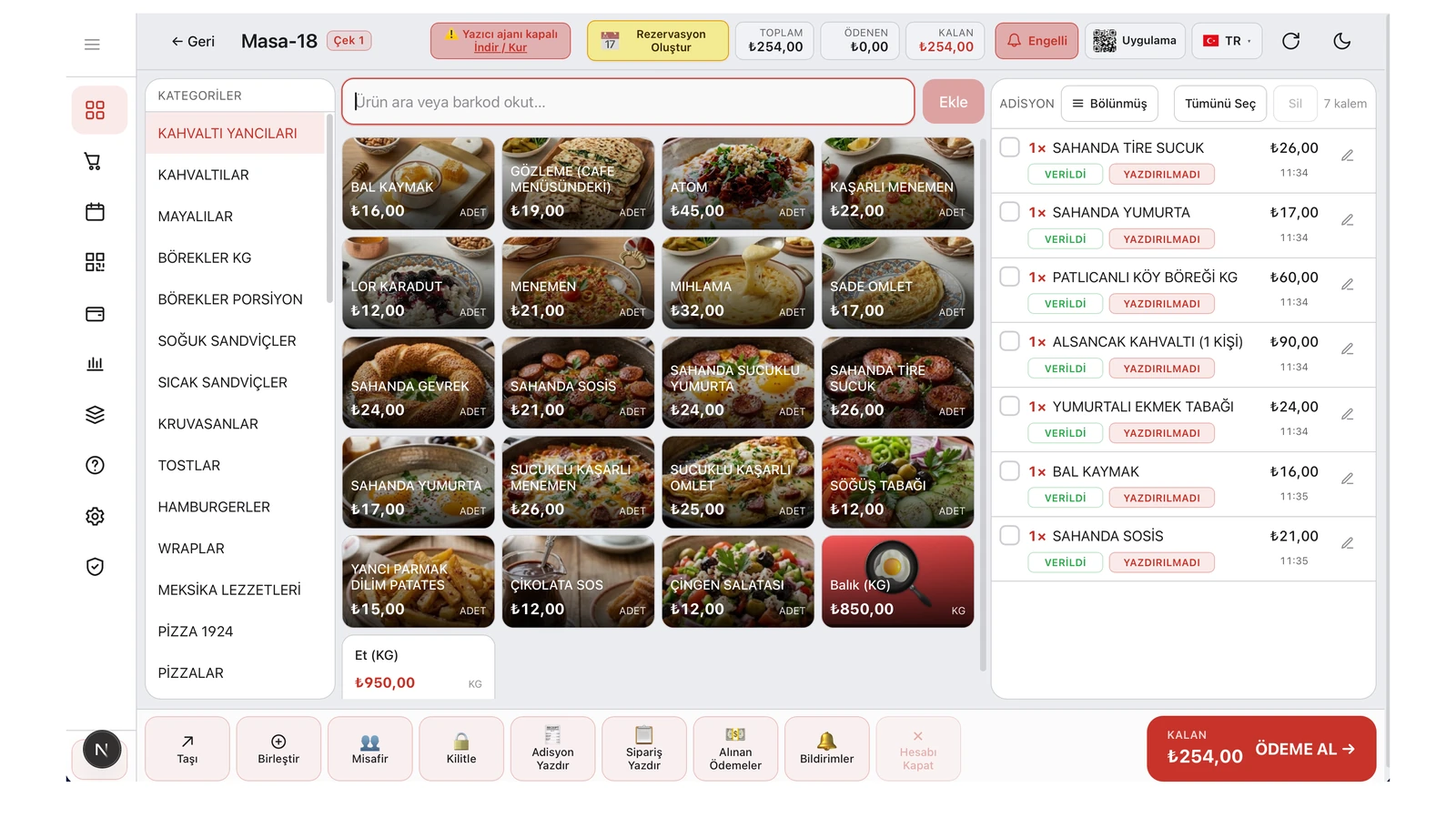
Next to the printer, most counters have three more devices: a scale if you sell by weight, a cash drawer where cash is taken, and a second screen so customers can follow their order. You open the RoxPos panel in a browser or the app, but these devices hang off a cable at the till or the shop's local network. Below you will find how to connect all three, their settings and the most common mistakes.
The bridge: the Print Agent on the counter PC
A browser cannot read a serial port, and a cloud server cannot reach a device in your shop. The Print Agent installed on the counter PC does that job: it prints to network and USB printers, reads the weight from the scale and sends the open command to the drawer. There are installers for Windows and macOS; the steps are on the printer and Print Agent setup page. The web panel normally reaches the agent on the same computer, so connect the scale and the drawer to the PC where the agent runs. Phones and tablets on the same network can use the agent too.
Scale: weighed items
- Products whose unit is Kg, Gram or L on the product card count as weighed; items sold by the piece are added as usual.
- Tapping a weighed item opens the quantity window. If a scale is set up, the weight is read automatically; the "Weigh" button reads it again.
- The scale always sends kilograms. If the item is priced per gram, the system multiplies the value by 1000 and enters grams; kg and litre use three decimals.
- You can type an amount instead of a quantity: when one is entered, the other is calculated from the unit price, and the line goes on the bill with both quantity and amount.
Where to set it: General Settings ▸ Hardware and peripherals ▸ Scale integration. Enter a serial port (such as COM3 on Windows or /dev/ttyUSB0 on Mac/Linux), or ip:port for a network scale. If the reading is taken before it settles, the screen warns you; steady the item and weigh again, or correct it by hand. Details are on the scale and weighing page.
Cash drawer: when should it open?
If the drawer is on a serial port, enter the port name (for example COM1); if it is plugged into the drawer socket of a network receipt printer, enter the printer's IP address and port 9100. Details are on the cash drawer page. Then pick a single moment under "When should the drawer open?"; the drawer opens only then:
- When a cash payment is taken (default): it opens when cash is recorded, not for card payments or payments sent to the fiscal device.
- When the payment screen opens via "Take Payment".
- When "Collect Payment" or "Send to POS" is pressed.
- When Cash, Card or another payment type is selected.
The second customer display
The customer display shows the bill live on a second screen facing away from the cashier: items, discount and total. After a partial payment, paid items appear struck through and the figure at the bottom switches to the remaining amount. While no table is open, the welcome image or video you upload fills the screen, with the welcome text and branch name small in a corner. Videos can be at most 30 seconds; with no media, the welcome text is shown full screen.
In the web panel the display opens as a separate window; if the browser supports it, the window moves to the second monitor on its own, otherwise you drag it there. In the mobile app it works on Android devices with a second screen; it is not available on iOS. The "Customer Display (2nd screen)" option in General Settings turns it on; the "Enable on this device" switch decides which device opens it, and the user list decides for which users (an empty list means everyone).
Setup checklist and common pitfalls
- Install the Print Agent on the counter PC. If the top bar shows the "Print agent offline" warning, the scale and drawer will not work either.
- Connect the scale and the drawer to that computer and enter their ports separately; never give both the same port.
- For phones and tablets, turn on "Let mobiles use the print agent" in General Settings and enter the counter PC's local IP address. The agent must accept network connections (AllowLan) and port 17777 must be open in the firewall.
- Devices must be on the same local network as the counter PC; a phone on mobile data cannot reach the agent.
- Test the printer, scale and drawer one by one on the Device Connection Test screen in Settings.
- For an item in grams, the price is per gram. If you want to enter a price per kilo, choose Kg as the unit.