
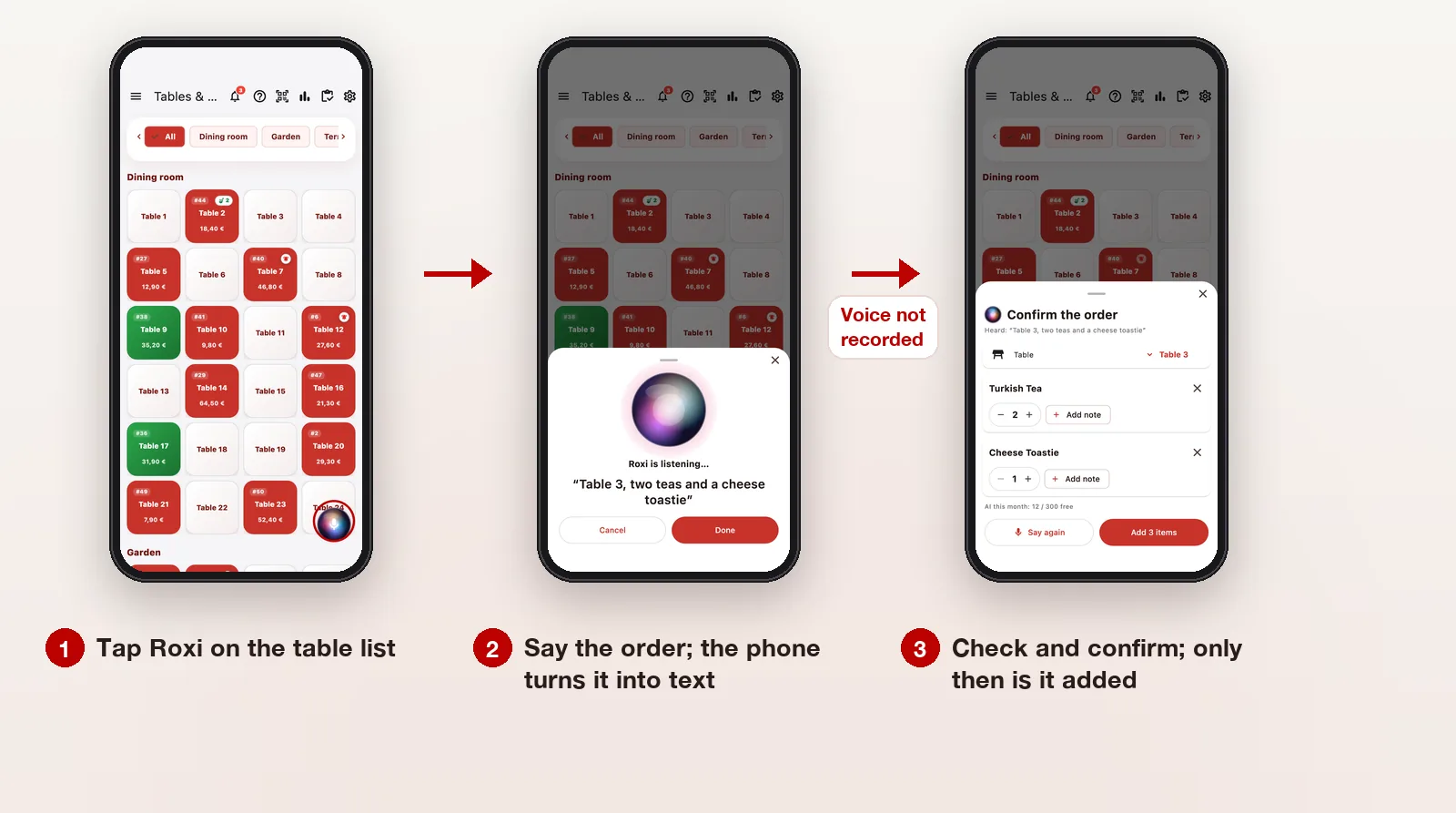
On a busy evening, the place waiters lose the most time is turning away from the table to find each product on the phone. Voice ordering shortens that step: the waiter says the order at the table, RoxPos Pro finds the products, quantities and table, and the waiter checks and confirms. This article walks through Roxi, the AI-assisted voice assistant in RoxPos Pro.
Where does it work?
In the RoxPos Pro mobile app on iPhone and Android phones: on the table list and inside an open table. Roxi is on by default; if you don't want it, turn it off with the “Roxi voice assistant” switch in General settings. There is no voice ordering in the web panel. The order text is understood on the RoxPos side, so an internet connection is needed. Details are on the Roxi voice assistant page.
Voice ordering step by step
1. Tap Roxi
In the RoxPos Pro mobile app, tap the glowing Roxi button in the corner of the table list or inside an open table. The first time, the phone asks for microphone and speech recognition permission; you grant it once.
2. Say the order naturally
On the table list, say the table too: “Table 3, two teas and a toastie” or “Garden 27, two sodas”. Inside a table, the products are enough. The text appears on screen as you speak; press “Done” when you finish.
3. Check the confirmation window
The table, products and quantities are listed. Increase or decrease a quantity, add a note, remove a wrong line or change the table. If it is all wrong, press “Say again”.
4. Confirm
When you press “Add”, the products go onto the bill just as if you had added them by hand; sending to the kitchen and printing work as usual. Nothing is added before you confirm.
Where does the voice go?
Nowhere. Speech is turned into text on the phone by the phone's own speech recognition; the voice is not recorded and is not sent to RoxPos. Only the order text, such as “Table 3, two teas and a toastie”, goes to RoxPos.
When does AI step in, and what does it cost?
Most products are found by a free local matcher: it works in 8 languages, catches a near pronunciation even when the name is not said exactly, and learns your branch's own words. For example, when the team says “milky coffee” and picks Latte, that match is remembered for the branch. AI only helps with an order it cannot be sure about.
Each company gets 5,000 AI-assisted orders free every month. After that, every 50 AI-assisted orders use 1 AI credit; credits are shared with invoice reading and image creation. This month's usage is shown at the bottom of the confirmation window.
Inside a table: printing and payment
Inside an open table you can also say these commands, with the order or on their own; they appear under “Actions” in the confirmation window and you can remove any you don't want:
- “Print the order” and “print the bill”
- “Take cash payment”, “take payment by card” or just “take payment”
With a payment command, the payment screen opens with the method you said already selected. A card payment goes to the connected card terminal / POS through the normal payment screen. No money is taken without your confirmation; you see the amount and method on screen and confirm.
Tips for good results
- Say the table name as it appears on screen: “Table 3”, “Garden 27”.
- Put the quantity before the product: “two teas, one toastie”.
- Match the short name your team uses to the right product once in the confirmation window; next time it is found straight away.
- Speak in the app's language. If the phone's speech recognition does not support it (for example Irish on iPhone), the Roxi button is hidden.