
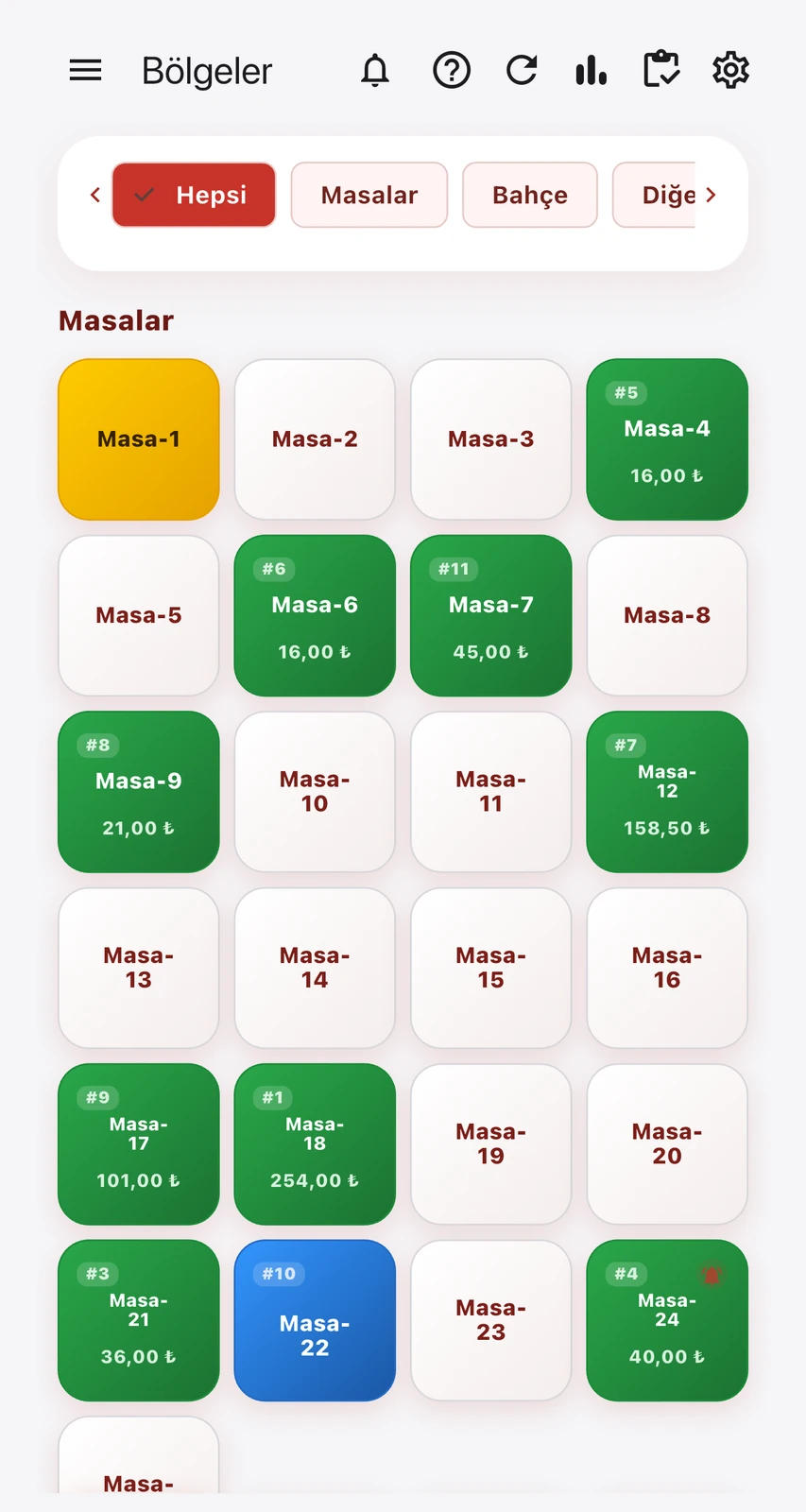
In a newly set up system, every notification usually goes to everyone: the waiter's phone rings for online orders, the cashier's for waiter calls, the owner's for every order the kitchen finishes. Before long nobody looks at notifications, and the important one gets missed. With Notification Management you decide on one screen which notification goes to whom.
Three options: Everyone, Selected staff, Off
The Settings › Notification Management screen is available in the web panel and in the mobile app. For each notification type you pick one of three options: Everyone, Selected staff or Off. With Selected staff you tick the users who should receive it; if nobody is ticked, nobody gets it. Rules are per branch, and each branch is set separately. If no rule has been saved, every notification goes to everyone, so nothing changes until you use the screen.
Notification types you can manage
| Notification | When is it sent? |
|---|---|
| New online order | When an order arrives from Getir, Yemeksepeti, Uber Eats (Trendyol) or Migros Yemek |
| New table order | When items are added to a table (bell sound in the web panel) |
| QR menu order | When a guest orders from the QR menu |
| Waiter call | When a guest calls a waiter from the QR menu |
| Table order ready | When the kitchen display marks a table order ready |
| Online order ready | When the kitchen display marks an online order ready |
| Critical stock | When an item drops to or below its critical level |
| Staff table notice | When staff send a notice for a table |
| Auto receipt stopped | When the automatic fiscal receipt for an online order could not be issued |
The rule runs on the server
The rule is applied on the server, not on the phone. Push notifications to the mobile app and the browser are filtered before they are sent, so the app versions already installed on your phones follow the rule without waiting for an update. Notifications only go to devices of the branch concerned. Menu permissions still apply too: a user who cannot open the Online Orders menu does not get online order notifications, even if they were added to the rule. To set up permissions, see the permission management page.
Bells and counters stay the same
Notification Management only changes who is alerted. The bell on the table card, the notification history and the counters in the menu keep showing the real state, and everyone sees them; a person whose notification is off simply gets no sound, pop-up or push. When a table is closed, its open notifications are closed too. Notification sounds live in General Settings › Notification Sounds: you pick separate tones for table orders and online orders, and the choice is specific to each device. More in our restaurant notifications article.
Critical stock alert: once per item
You enter critical levels on the Critical Stock Levels screen in the stock menu. Table, QR and online sales all reduce stock; when an item drops to or below its critical level, the alert is sent once, and items that drop at the same time are grouped into a single notification. The alert only comes back after a real stock entry (a purchase, a count surplus, production, a transfer in and so on) has lifted stock above the level and the item drops again; a cancelled or returned sale does not re-arm it. For the types of stock entries, see our stock movements article.
An example setup
- Owner: only Critical stock and Auto receipt stopped. No daily order traffic, yet nothing that needs action is missed.
- Waiters: Waiter call, QR menu order, Table order ready and Staff table notice. When the kitchen display marks a dish ready, the person who serves it knows; see our kitchen display guide.
- Cashier: New online order and Online order ready. This is the person who packs the order before the courier arrives.
- Kitchen: often none at all; orders already appear on the kitchen display and on tickets.
One last note: a phone receives push notifications for only one company at a time, the active company last signed in on that device. If you run two businesses from the same phone, the other one's notifications stop until you sign in to it again. After setting the rules, watch for a few days and adjust the list if needed.